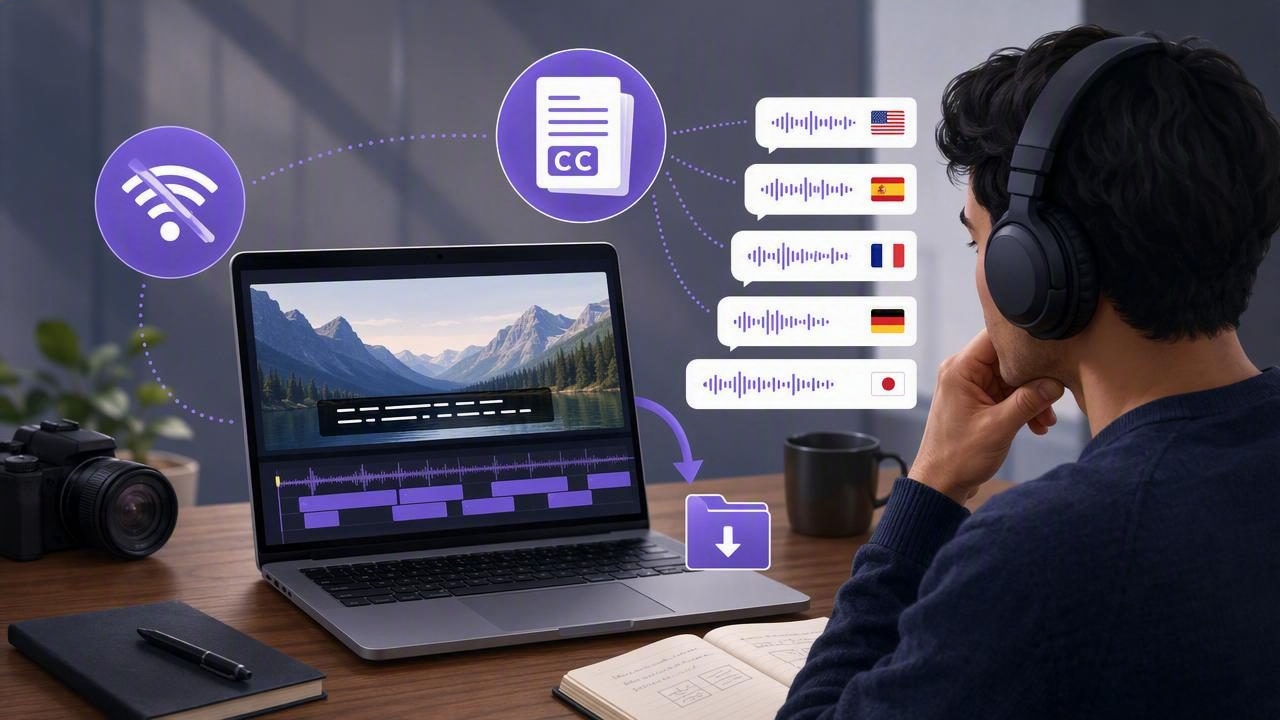
Captions are no longer optional. They improve watch time, accessibility, and comprehension—especially on short-form platforms where viewers often watch on mute. The challenge is that many caption tools require uploading your footage to the cloud, which can be slow, costly, and risky for sensitive scripts, client work, or unreleased content.
This guide explains a practical, creator-friendly workflow to generate subtitles in multiple languages offline—directly on your phone or computer—so your audio, scripts, and video can stay private. You’ll learn how offline captioning works, how to improve accuracy, how to handle multilingual subtitles, and how to export in formats that platforms and editors understand.
What “offline multilingual subtitles” actually means
When people say “offline subtitles,” they usually mean one of these:
- Offline transcription: converting spoken audio into time-synced text on-device (no internet).
- Offline translation: translating that transcript into other languages without sending it to a server.
- Offline rendering: burning captions into the video or exporting sidecar files (SRT/VTT) locally.
In real workflows, you’ll often do transcription offline first, then translate, then review and export. The “multiple languages” part adds complexity because each language has different line lengths, punctuation rules, and reading speeds.
Offline vs online subtitles: the real trade-offs
| Factor | Offline (on-device) | Online (cloud) |
|---|---|---|
| Privacy | High: audio/video stays on your device | Varies: uploads required; retention policies differ |
| Speed | Fast once processed locally; no upload time | Can be slow on large files or weak connections |
| Accuracy | Strong for clear audio; may vary by language model | Often strong; may improve with server-scale models |
| Cost | Often one-time or app-based; no per-minute fees | Commonly subscription or usage-based |
| Reliability | Works anywhere (travel, events, on set) | Requires stable internet |
Creator takeaway: If you care about privacy, travel frequently, or work with client scripts under NDA, offline captioning is usually the safest baseline.
The most reliable workflow to generate subtitles in multiple languages offline
Here’s a battle-tested workflow that keeps quality high while minimizing manual work. You can follow it with many on-device subtitle tools and editors.
1) Record clean audio (accuracy starts here)
Offline models do best with clear, consistent speech. Before you generate subtitles, tighten your recording setup:
- Use a close mic: lavalier or directional mic reduces room noise.
- Reduce reverb: soft furnishings help; avoid large empty rooms.
- Watch clipping: distorted peaks can confuse transcription.
- Speak with intent: natural pacing beats “rushed presenter voice.”
2) Transcribe offline in your primary language
Start with the language you spoke in the video. Generate an on-device transcript with timestamps. This becomes your “source of truth” that you’ll clean once, then reuse for every translation.
Pro tip: If your tool allows it, pick the exact spoken language rather than “auto-detect.” Auto-detect can misfire with code-switching or accents.
3) Do a quick accuracy pass (2–5 minutes that saves hours)
Even great transcription needs a fast review. Focus on high-impact fixes:
- Names and brands: fix spelling once; it propagates to translated versions.
- Numbers: “fifty” vs “15” changes meaning.
- Technical terms: add consistent casing (e.g., “iPhone,” “4K”).
- Remove filler words (optional): “um,” “like,” repeated starts.
4) Translate offline into target languages
To generate subtitles in multiple languages offline, translate from your cleaned source transcript to each target language. Aim for meaning first, then adjust readability:
- Keep sentences short: subtitles are read fast and on small screens.
- Use local punctuation norms: quotation marks, commas, spacing differ.
- Preserve intent: jokes and idioms often need adaptation, not literal translation.
If you’re producing for global audiences, prioritize languages based on analytics (top geographies) and community requests.
5) Fit subtitles to mobile reading speed
Multilingual captions often overflow because some languages expand text length. Use these rules of thumb:
- Line length: keep lines visually short for vertical video.
- Two lines max per caption block for readability.
- Reading speed: avoid dumping long sentences into a 1-second window.
- Split on meaning: break at natural phrases, not random word wraps.
6) Choose the right subtitle format (SRT vs VTT vs burned-in)
Your export choice depends on where the video will live and how much control you need:
- SRT (SubRip): most universal for editors and platforms.
- VTT (WebVTT): common for web players; supports some styling.
- Burned-in captions: best when you want consistent styling everywhere, but they can’t be toggled off.
If you want platforms to index your captions and allow viewers to toggle languages, upload separate caption files per language when supported.
Example: What an SRT caption file looks like
This is the basic structure most tools export. It’s simple, editable, and easy to version per language.
1
00:00:00,500 --> 00:00:02,200
Today I’ll show you how to generate subtitles offline.

2
00:00:02,200 --> 00:00:04,800
Then we’ll translate them into multiple languages.
For multilingual delivery, you typically create one SRT per language (e.g., captions-en.srt, captions-es.srt, captions-ja.srt).
Quality checklist for multilingual subtitles (offline or not)
Timing
- Captions should appear as the words are spoken (not early).
- Leave enough on-screen time to read; avoid rapid flashing.
- Don’t let a caption linger long after the sentence ends.
Style and consistency
- Use consistent capitalization and terminology across videos.
- Decide how you’ll handle emojis, slang, and tone per language.
- For vertical video, keep captions away from UI overlays (bottom bars, usernames).
Accessibility
- If there’s important non-speech audio, consider tags like [music] or [applause] where appropriate.
- High-contrast text with a subtle background improves readability outdoors.
Common pitfalls when generating subtitles in multiple languages offline
1) Assuming translation equals localization
Direct translations can sound robotic or confusing. If the video is instructional, rewrite for clarity in the target language. If it’s entertainment, prioritize humor and tone.
2) Ignoring text expansion
Some languages take more characters to express the same idea. Plan for this by shortening the original script where possible, or by splitting captions more frequently.
3) Not keeping a “master transcript”
If you edit each language independently without a master, updates become painful. Keep a single cleaned source transcript, then regenerate translations when the script changes.
4) Over-styling burned-in captions
Heavy fonts, huge boxes, or extreme animations can hurt comprehension. Keep styling consistent, legible, and platform-appropriate.
A repeatable creator workflow (quick reference)
- Record with clean audio and stable framing.
- Transcribe offline in the spoken language.
- Clean transcript (names, numbers, key terms).
- Translate offline into target languages.
- Adjust line breaks for mobile readability.
- Export SRT/VTT per language or burn-in captions.
- Upload with language labels; spot-check playback on a phone.
Tips to improve offline subtitle accuracy on iPhone
- Prefer 48 kHz audio when possible (common in video workflows).
- Reduce background processes during transcription for faster on-device processing.
- Use a consistent speaker distance so volume doesn’t fluctuate.
- Do a short test clip first and validate language detection before processing a long take.
When offline subtitles are the best choice
Offline workflows shine when:
- You’re captioning client work or unreleased content.
- You travel or film in places with limited connectivity.
- You want predictable turnaround without upload time.
- You prefer a script-to-video pipeline where everything stays on one device.
Closing thoughts
Learning to generate subtitles in multiple languages offline is one of the highest-leverage upgrades you can make to your creator workflow: it improves accessibility, expands your reach, and keeps your raw footage private. The key is treating captions like a production step—clean audio, a master transcript, and readability-focused formatting—rather than an afterthought.
If you’re looking for an iPhone workflow that combines script reading, on-device subtitle generation in many languages, and export options designed for short-form platforms, you can explore an app like CueCam—but the principles above apply no matter which tools you choose.
