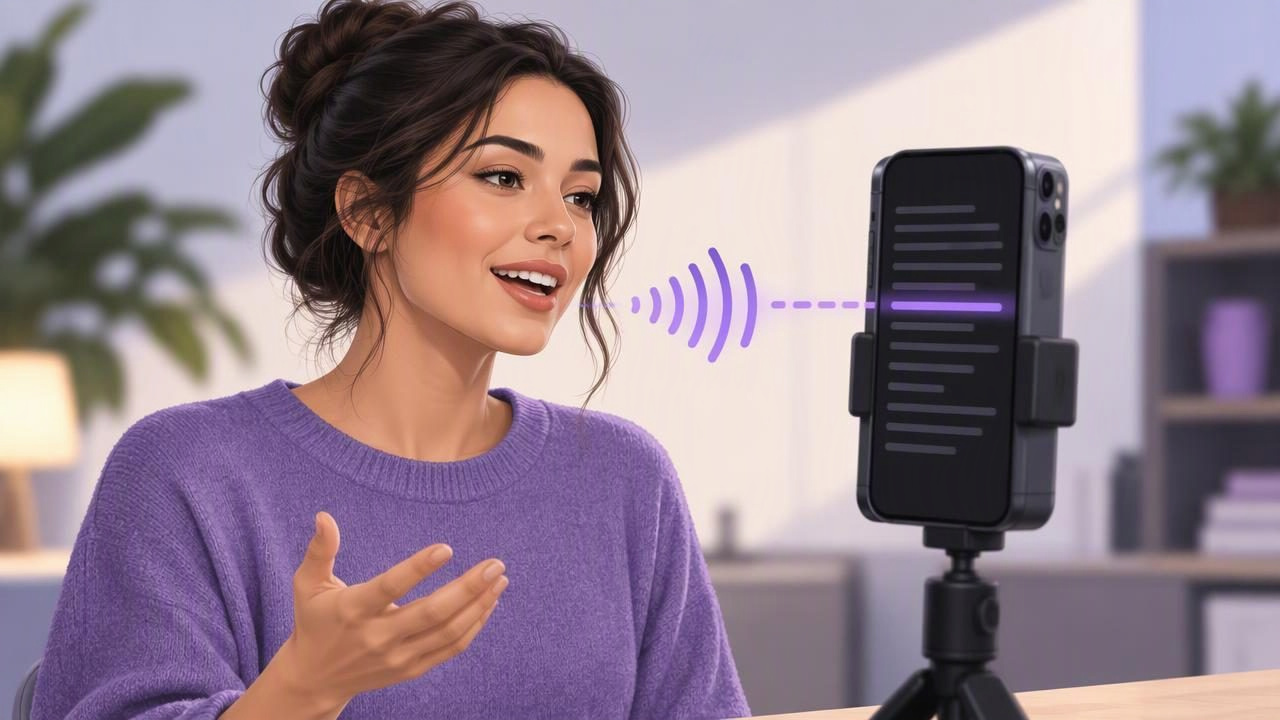
A mobile script reader can move text as you speak, so you can follow a script without tapping the screen or keeping a rigid scroll speed. This is useful for short videos, explainers, presentations, and other camera-facing recordings where you want your eyes near the lens. The key is to prepare the script for speech, position the text close to the camera, and test whether voice-following works reliably in your recording setup.
Voice-following does not mean every app will track every speaker perfectly. Recognition can be affected by room noise, delivery, pauses, and differences between the written script and spoken words. Use the method below to get a smoother read, and keep a fixed-speed or timed scrolling option in mind if voice tracking is not a good fit for your situation.
What voice-following does in a mobile script reader
A voice-following teleprompter listens to speech and uses it to move the script, often highlighting or tracking the words as you read. Instead of advancing at a preset rate, the text responds to your spoken pace. That can make it easier to pause for emphasis, slow down for a key point, or speak more naturally than you might with a fixed scroll.
Voice-following is different from voice control. Voice control typically means operating a device or feature with spoken commands; voice-following refers to the script keeping pace with the words it recognizes. The exact behavior depends on the app. Some readers may track individual words, while others may move through larger sections.
For it to work well, the spoken delivery needs to resemble the text closely enough for the app to keep its place. If you paraphrase, skip a sentence, repeat a phrase, or add a long pause, the display may lag or move unexpectedly. Treat it as a reading aid rather than a substitute for a quick rehearsal.
Prepare a script that is easy to say aloud
A script written for reading silently can feel stiff on camera. Before loading it into a mobile script reader, revise it for spoken language. Use shorter sentences, familiar words, and clear transitions. Add paragraph breaks where you expect to pause or change ideas. These visual cues can help you find your place if the reader loses track.
For example, a written sentence such as “Our latest solution facilitates the efficient completion of everyday tasks” may be difficult to deliver naturally. A spoken version could be: “Our new tool helps you finish everyday tasks faster.” Keep the meaning, but choose words you would comfortably say to another person.
Be careful with formatting. A long block of text can be difficult to scan, while excessive line breaks may make the script feel choppy. Break the copy into manageable thoughts and keep headings or stage directions visually distinct from the lines you intend to speak. If you include pronunciation notes, make sure they will not be mistaken for words to read aloud.
A short sample script
“If you film product updates on your phone, try this simple change.
Write one idea per paragraph.
Then place your script beside the lens, not at the bottom of the screen.
Your delivery can stay conversational, and your eyes have less distance to travel.”
The short paragraphs give you natural places to breathe without changing the words the reader expects to hear. Adjust the wording to your own voice rather than trying to reproduce this example exactly.
Set up the phone and camera for easier reading
Position the phone so the camera lens is close to the script text. If the words sit far below or beside the lens, your eye movement may be noticeable even when you are reading smoothly. A small change in the placement of the text can make a difference, but do not cover the camera or place the phone somewhere unstable just to bring the script closer.
Choose a text size you can read without leaning forward. If the lines are too long, your eyes may travel across the screen; if they are too large, you may need to scroll more often. Try a comfortable size and a narrow enough text area to keep each line easy to follow. Check your framing in the camera preview before recording.
Also consider the room and your speaking position. Face the phone, speak toward its microphone or your chosen recording microphone, and reduce nearby noise where possible. A quiet room can help both the recording and voice tracking. Do not assume an app will recognize speech in every environment or with every microphone setup; check its requirements and test your actual configuration.
Run a short voice-tracking test before recording
Before recording the full video, read a short section while watching the script. Use your normal speaking volume and pace. Include a pause, a sentence with a longer word, and one transition between paragraphs. Notice whether the text follows you, waits when you pause, and stays in place when you finish a line.
If it moves too quickly or loses your place, first check the practical basics: Is the room noisy? Are you reading the displayed words as written? Is the phone positioned to hear you clearly? Try the test again after making one change at a time. A short test can reveal a mismatch before it becomes a problem in a longer take.
Voice-following can be less dependable when you depart from the script, speak over background audio, or deliver words in a way the app does not recognize. Language support and behavior can also differ between apps and devices. Confirm that the feature supports the language you plan to speak, and do not rely on it for a critical recording until you have tested it.
Keep your delivery natural while following the words
Reading accurately is only part of an effective on-camera delivery. Speak to the lens as if you were explaining the idea to one person. Use the script to stay on message, but allow your voice to rise and fall naturally. A mobile script reader should reduce the effort of remembering lines, not make you sound as though you are reciting them.
- Read in short thought groups. Complete one idea before moving into the next instead of rushing to keep up with a long paragraph.
- Pause deliberately. A brief pause can help the audience absorb a point. Voice-following may hold the text while you pause, but test how your reader handles silence.
- Look toward the lens. Keep the text close to the camera and glance at it without turning your head or shifting your whole posture.
- Allow small imperfections. A natural emphasis or slight change in rhythm can sound more conversational than a perfectly even read.
If you stumble, stop and reset at a clear paragraph rather than trying to recover while the text continues moving. Depending on the reader, you may need to reposition the script manually or restart the section. A clean restart is often easier to edit than a long interruption in the middle of a sentence.
When to choose voice-following, fixed speed, or timed scrolling
Voice-following is helpful when your pace varies or you want to pause naturally. Fixed-speed scrolling can suit a rehearsed delivery with a consistent rhythm. Timed scrolling can help when you have a set duration and know how long you need for each section. None is automatically best; choose the mode that matches the script and how you speak.
| Reading mode | May suit | Keep in mind |
|---|---|---|
| Voice-following | Conversational delivery with pauses or changes in pace | Recognition may be affected by noise, phrasing, and language support |
| Fixed speed | A rehearsed read with a steady rhythm | You may need to match the scroll or adjust its speed |
| Timed scrolling | A script planned around a target duration | Timing can feel rushed or slow if your delivery changes |
For instance, if you are recording a 45-second introduction and tend to pause after the opening hook, voice-following may feel more flexible than a fixed rate. If your reader repeatedly loses its place because you add unscripted comments, a timed or fixed mode—or a shorter, more faithful script—may be easier to manage.
Make a simple script-to-video workflow
Keep your recording process focused. First, edit the script aloud and mark paragraph breaks. Next, set the phone, lens, and text placement. Then run the short audio and tracking test. Once the movement feels usable, record one complete take and review a few moments: the opening, a pause, and the final line. You can then decide whether the issue is the script, positioning, sound, or reading mode.
For longer videos, divide the script into sections rather than relying on one uninterrupted read. Section breaks give you places to reset, and they can make later trimming easier. If you plan to add subtitles, leave enough room in the frame for captions and check that they will not cover important on-screen details. Caption creation and voice-following are separate functions, so confirm each one independently if your workflow depends on both.
Recording and recognition capabilities vary by app, device, language, and setup. Likewise, a mobile teleprompter cannot guarantee that every take will be perfectly synchronized or that audio will be clear in a noisy room. A practical test is more useful than assuming a feature will behave identically in every situation.
Choose the method that lets you focus on the message
A mobile script reader works best when the text sounds spoken, the display sits near the lens, and the reading mode fits your pace. Voice-following can help you stay with a script while speaking naturally, but it has limits: changes in wording, background noise, and unsupported language or device configurations can affect tracking. Test a short passage, keep an alternate scroll mode available, and adjust one variable at a time.
For an iPhone-specific walkthrough of recording while reading, see CueCam’s guide to recording video while reading a script. Use it as a starting point, then check the options and limitations of the reader you plan to use.
