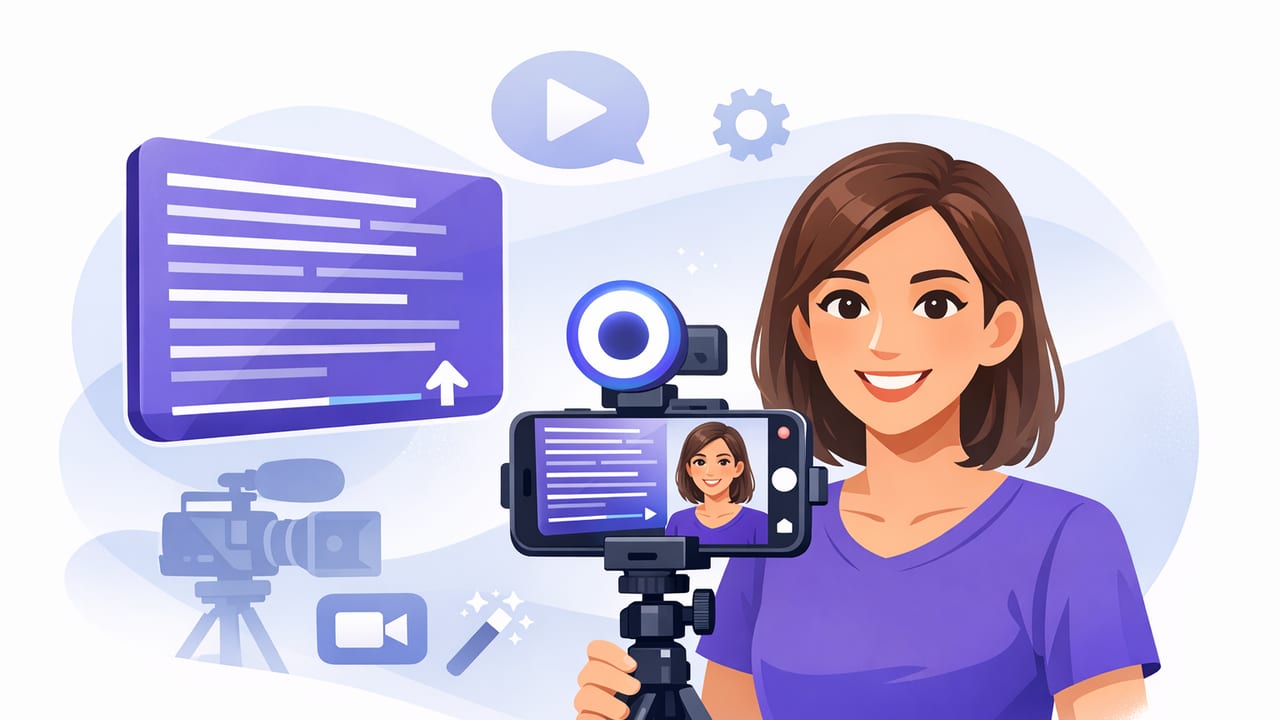
Finding the right video teleprompter app for iPhone isn’t just about getting words on screen. The best apps help you deliver scripts naturally, keep eye contact with the camera, record high-quality footage, and finish faster—without turning your workflow into a multi-app puzzle.
This guide breaks down what actually matters when choosing a teleprompter app for filming on iPhone: scrolling modes, recording quality, audio support, subtitle generation, editing essentials, exporting for social platforms, and privacy. Use it as a practical checklist before you commit to a new tool (or to confirm you’re using your current one efficiently).
Why a video teleprompter app is different from a script scroller
A basic “scrolling text” app can help you read lines, but creators typically need more than that. A video teleprompter app is designed to:
- Keep eye contact (script close to the lens, not off to the side)
- Match your pace (so you don’t rush or wait for the text)
- Record video + audio reliably (often with pro options like 4K and external mics)
- Reduce post-production (captions, trims, reframes, exports)
In short: you’re not shopping for a reader—you’re shopping for a script-to-video workflow.
The 7 features that matter most (and how to evaluate them)
1) Scrolling modes: voice-follow, fixed-speed, and timed
Scrolling is where many teleprompter experiences succeed or fail. Look for at least two (ideally three) modes, each useful in different situations:
- Voice-following: the text advances as you speak. Great for conversational delivery and retakes.
- Fixed-speed: you set a speed and read steadily. Great for announcements, ads, and practiced scripts.
- Timed scrolling: you set a duration (e.g., 45 seconds) and the script fits it. Great for content with strict limits.
Tip: If you often record one-take videos, voice-following can reduce “teleprompter panic” because you don’t have to chase the text.
2) Script readability and formatting tools
When text is hard to scan, your delivery becomes robotic. A strong teleprompter experience lets you control:
- Font size, line spacing, and margins (so your eyes move less)
- Paragraph breaks that match breath and emphasis
- Highlighting for the current line/word (especially helpful in voice-follow mode)
- Mirroring (useful if you ever use a physical teleprompter rig)
Also check whether the app supports quickly importing scripts (paste, files, notes). Small friction here adds up fast if you publish frequently.
3) Pro recording options: resolution, frame rate, stabilization
If the teleprompter records video inside the app, it should meet modern creator expectations. Prioritize:
- 4K recording (useful even if you export 1080p—4K gives room to crop)
- 60fps if you film motion, demos, or want smoother footage
- Stabilization (especially for handheld or walking shots)
- Control over camera selection (front vs. rear lenses)
Even if you mainly post vertical videos, higher capture quality can make your final export look cleaner after reframing and compression.
4) Audio support: external microphones and clean capture
Audio quality is often the difference between “scroll-stopping” and “skip.” If you use lavs or wireless systems, confirm the app works well with:
- External microphones (wired or wireless)
- Consistent audio levels (no sudden pumping or clipping)
- Optional voice enhancement/cleaning for quick turnaround edits
5) Subtitles and captions: accuracy, speed, and languages
Captions aren’t optional for most platforms. A creator-ready teleprompter workflow ideally includes:
- On-device subtitle generation (fast and privacy-friendly)
- Multiple languages if you publish globally
- Editable transcripts (to fix names, terms, or brand words)
- Burned-in captions and/or caption files (depending on your needs)
If subtitles require uploading to a server, ask whether that fits your privacy requirements and client constraints.
6) Built-in editing: the “minimum viable editor” for creators
You don’t need a full NLE inside your teleprompter, but you do want enough to publish quickly. Useful built-ins include:
- Trim (remove dead air and resets)
- Resize/reframe (9:16, 1:1, 16:9)
- Background replacement for simple talking-head upgrades
- Watermark options (for drafts or client previews)
7) Export presets for TikTok, Instagram, and YouTube
Creators lose time when exports don’t match platform expectations. Look for quick export choices that handle:
- Aspect ratio (vertical vs. horizontal)
- Resolution and bitrate appropriate for mobile
- Caption placement safety (avoid UI overlays where possible)
Quick comparison table: what to look for
| Capability | Why it matters | What “good” looks like |
|---|---|---|
| Scrolling modes | Matches different speaking styles | Voice-follow + fixed-speed + timed |
| Script formatting | Improves eye movement and delivery | Font/spacing controls, highlighting, mirroring |
| Recording quality | Future-proofs footage and enables cropping | Up to 4K, up to 60fps, stabilization |
| Audio support | Professional sound without extra steps | External mic support + clean capture |
| Subtitles | Accessibility + retention | On-device, fast, multilingual, editable |
| Editing basics | Faster publishing | Trim, resize, simple cleanup tools |
| Privacy | Client work and personal comfort | Local processing, minimal data collection |
A practical workflow: from script to posted video
If you want a reliable process you can repeat daily, build your workflow around these steps:
- Write for spoken delivery: short sentences, contractions, clear transitions.
- Format for scanning: add line breaks where you breathe and emphasize.
- Choose the right mode: voice-follow for natural pacing, timed for strict length.
- Record in high quality: capture 4K if you’ll crop; monitor audio.
- Do a “single-pass edit”: trim mistakes, reframe, light cleanup.
- Generate subtitles: correct key terms and names.
- Export with platform intent: 9:16 for short-form, 16:9 for long-form.
Script formatting example you can copy
Here’s a simple way to format a script so it reads naturally on a teleprompter (note the breath breaks and emphasis cues):
[HOOK]
If you feel awkward on camera,
this one change will help immediately.

[CONTEXT]
Most people read a script like an essay.
But video needs spacing.

[KEY POINTS]
1) Short lines.
2) One idea per beat.
3) Mark emphasis: *like this*.

[CLOSE]
Try it once,
then record a second take.
You’ll hear the difference.
Privacy checklist: what happens to your scripts and footage?
Teleprompter apps often handle sensitive materials: unreleased launches, client messaging, internal training, or personal stories. Before you adopt one, ask:
- Is speech-to-text on-device or in the cloud?
- Are scripts stored locally, or synced to a server by default?
- Is sign-up required? (Accounts can be convenient, but they’re a privacy trade-off.)
- Can you export and delete easily? (You should control retention.)
For many creators, an on-device workflow reduces risk and simplifies compliance when working with brands or clients.
Troubleshooting: common teleprompter recording issues
You sound monotone
- Increase line spacing and font size so your eyes move less.
- Add emphasis markers (italic or bold cues) in the script.
- Use voice-follow mode so you can pause naturally without losing your place.
Your eyes look like they’re reading
- Move the text closer to the camera lens (or reduce margins).
- Shorten lines to avoid side-to-side eye travel.
- Practice with a slower scroll until your delivery feels conversational.
You keep rushing the script
- Switch to timed mode and set a realistic duration.
- Add intentional pauses: “(beat)” or a blank line.
- Record one warm-up take without publishing it.
Captions are wrong for names or jargon
- Edit the transcript and save a corrected version for reuse.
- Pronounce brand words clearly and consistently.
- Consider adding phonetic hints in the script for tricky terms.
FAQ (and an optional SEO enhancement)
What’s the best scrolling mode for beginners?
Fixed-speed is simplest to understand, but many beginners find voice-follow easier for natural pacing once set up.
Should I record in 4K on iPhone?
Record in 4K if you plan to crop, reframe, or reuse the same clip for multiple aspect ratios. If storage is tight and you won’t crop, 1080p is often enough.
Are on-device subtitles worth it?
Yes—on-device captions can be faster, work offline, and keep sensitive footage private. Accuracy depends on audio quality and clear speech.
If you want, you can add FAQ structured data to your page. Here’s a starter JSON-LD snippet you can customize:
{
  "@context": "https://schema.org",
  "@type": "FAQPage",
  "mainEntity": [
    {
      "@type": "Question",
      "name": "What’s the best scrolling mode for beginners?",
      "acceptedAnswer": {
        "@type": "Answer",
        "text": "Fixed-speed is simplest, but voice-follow often feels more natural once configured."
      }
    },
    {
      "@type": "Question",
      "name": "Should I record in 4K on iPhone?",
      "acceptedAnswer": {
        "@type": "Answer",
        "text": "Use 4K if you plan to crop or reframe; otherwise 1080p is usually fine and saves storage."
      }
    }
  ]
}
Choosing the right app: a final decision checklist
- Does it support the scrolling mode you’ll use most (voice-follow, fixed, timed)?
- Can you make the script easy to read (font size, spacing, highlighting)?
- Can it record at the quality you need (4K/60fps, stabilization)?
- Does it work with your microphone setup?
- Are subtitles fast, editable, and ideally on-device?
- Can you do quick edits and export in the right aspect ratio?
- Are privacy expectations clear (local storage, minimal data collection)?
If you’re testing options, try recording the same 30-second script in two modes (voice-follow and timed). The right video teleprompter app will make your delivery feel more like speaking and less like reading.
Gentle note: If your priority is an on-device, privacy-focused iPhone teleprompter workflow that also covers recording, subtitles, and quick edits, CueCam is one option to evaluate alongside your shortlist.
