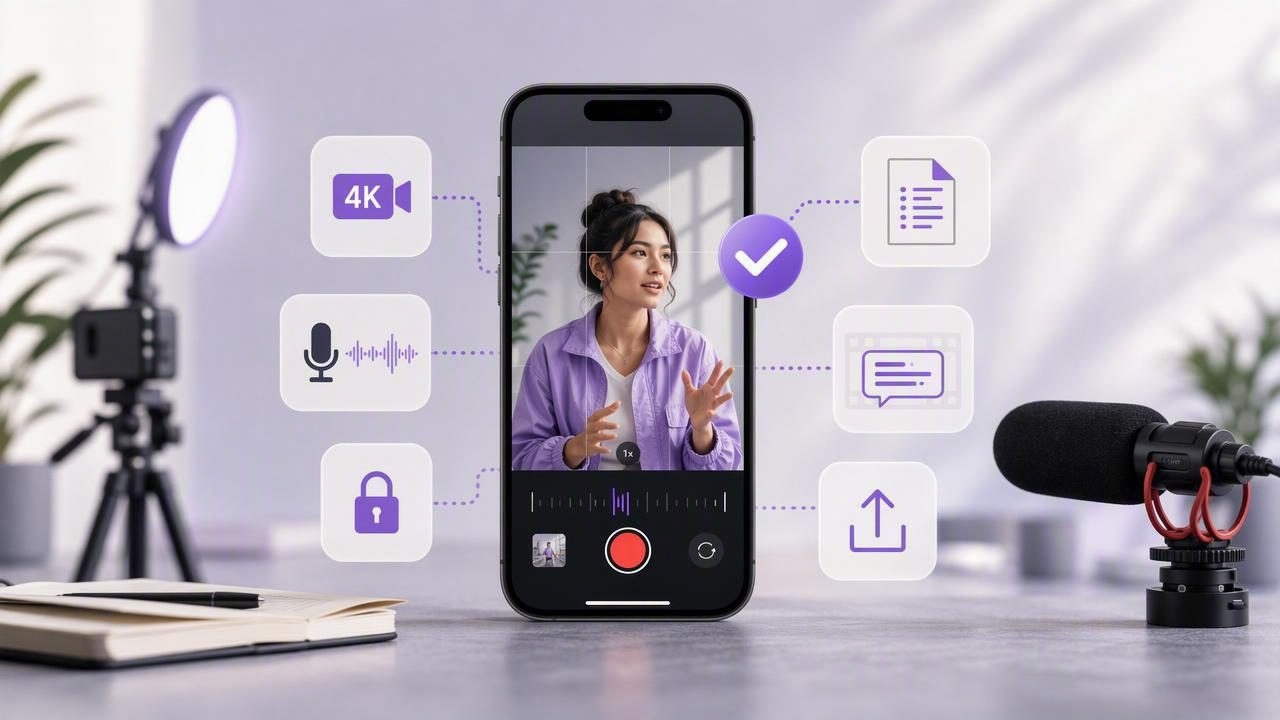
An iPhone can be an exceptionally capable production camera, but great footage depends on more than the device in your pocket. The right pro camera video app helps creators control recording quality, capture clear audio, follow a script naturally, add subtitles, and export videos in the correct format for each platform.
For solo creators, marketers, educators, founders, coaches, and social media teams, the ideal mobile workflow is not about collecting the most features. It is about reducing friction between an idea, a script, a recorded take, and a publish-ready video. This guide explains what to look for in a professional iPhone video app and how to build a reliable script-to-video process.
What Is a Pro Camera Video App?
A pro camera video app is a mobile recording tool that gives you more control than a basic point-and-shoot camera experience. Depending on the app, that can include higher-resolution recording, frame-rate options, stabilization, microphone support, exposure control, editing, captions, and platform-ready exports.
For creators, however, professional results are not only about technical controls. A useful pro camera video app should also support the way you actually create content. If you regularly deliver talking-head videos, tutorials, product explainers, sales messages, or online lessons, features such as a built-in teleprompter and subtitle generation can be just as valuable as 4K recording.
Essential Features to Look For
Before downloading an app, identify the parts of video production that slow you down. The best choice will solve your biggest workflow problem without making recording more complicated.
1. High-Quality Recording Options
Video quality begins with the capture settings. Look for an app that can record at resolutions and frame rates appropriate for your delivery channel. For many creators, 4K recording preserves detail and provides extra room to crop or reframe footage later. Recording at 60 frames per second can also be useful for smooth movement or when you plan to create slow-motion clips.
That said, bigger files are not automatically better. A 4K/60fps clip requires more storage, more battery power, and potentially longer export times. If you are recording a straightforward vertical talking-head video for social media, 4K at 30fps is often more than enough. Choose settings based on your intended output rather than using the highest option by default.
| Use Case | Suggested Starting Setting | Why It Works |
|---|---|---|
| Reels, Shorts, TikTok | Vertical 9:16, 4K/30fps | Sharp footage with manageable file sizes |
| Fast action or movement | 4K/60fps | Smoother motion and slow-motion flexibility |
| YouTube talking-head video | Horizontal 16:9, 4K/30fps | Detailed long-form footage for standard displays |
| Quick internal update | 1080p/30fps | Fast to record, send, and store |
2. Script Support and Camera Eye Contact
Many creators know what they want to say but lose momentum when recording. Memorizing a script can make delivery sound stiff, while reading notes offscreen can make it appear as though you are avoiding the viewer. An iPhone teleprompter feature addresses both issues by displaying your words close to the camera lens.
Look for scrolling modes that match your speaking style. Fixed-speed scrolling works well for tightly rehearsed scripts. Timed scrolling is useful when you have a known presentation length. Voice-following tracking is often the most flexible option because the text can move with your spoken pace rather than forcing you to rush or pause unnaturally.
A script should still sound like a person, not a document. Write in short sentences, include intentional pauses, and use contractions. Mark emphasis sparingly. If you stumble, pause for a second and restart the sentence; that gives you a clean edit point later.
3. External Microphone Compatibility
Viewers will forgive a slightly imperfect image more readily than poor audio. Room echo, background noise, and distant voices can make even a beautifully shot video feel unprofessional. A pro camera video app should work reliably with external microphones, whether you use a wired lavalier, wireless microphone system, USB microphone, or compact shotgun mic.
Before recording an important video, make a short test clip. Listen with headphones and check for clipping, static, inconsistent levels, or an incorrect input source. Keep the microphone near your mouth, reduce hard reflective surfaces where possible, and turn off nearby fans or noisy appliances.
Practical rule: Improve your audio before spending heavily on visual accessories. Clear speech increases retention, comprehension, and perceived credibility.
4. Stabilization and Framing Tools
Stable footage is easier to watch and easier to edit. If you film handheld, in-app stabilization can reduce minor shakes. For seated presentations, use a tripod or stable phone mount whenever possible. You should also look for framing guides that help you keep your eyes near the upper third of the composition and leave space for captions without covering your face.
For vertical video, position yourself in the center area of the frame. Avoid placing essential text at the extreme top or bottom, where social platform buttons and captions may cover it. Consistent framing across a series also helps build a recognizable visual style.
Why Subtitles Belong in Your Recording Workflow
Subtitles are no longer an optional finishing touch. They improve accessibility for deaf and hard-of-hearing audiences, help viewers follow content in noisy environments, and make spoken videos easier to understand when sound is muted. Captions may also support comprehension for viewers who speak another language or process information more effectively by reading.
An app with on-device subtitles can speed up the post-production process by creating captions directly on the phone. This is particularly helpful for creators publishing frequently. Instead of uploading a video to a separate service, waiting for processing, downloading it again, and importing it into another editor, you can move from recording to review in one workflow.
Always review automatically generated captions. Proper names, industry vocabulary, product names, and acronyms may need correction. Also consider subtitle placement, font size, contrast, and line length. Captions should remain readable without covering your mouth or key visuals.
Privacy: Why On-Device Processing Matters
Creators often record sensitive material: unreleased product updates, client communications, personal stories, course content, or internal company messages. When an app requires every script, recording, or transcript to be sent to a cloud service, you should understand where that content goes and how long it may be stored.
An on-device privacy approach keeps scripts and media on your iPhone unless you intentionally share or export them. This can reduce upload delays, support offline creation, and give you more control over confidential footage. For teams in regulated industries or anyone discussing private information, local processing is more than a convenience; it is an important selection criterion.
A Simple Script-to-Video Workflow
Professional video creation becomes easier when you follow the same sequence each time. Use this repeatable process for talking-head content, tutorials, announcements, and educational clips.
- Define one viewer takeaway. Write down the single idea a viewer should remember.
- Draft a conversational script. Start with a hook, explain the value, add supporting points, and end with a clear next step.
- Set your format. Select vertical, square, or horizontal framing before you record.
- Prepare the scene. Face a window or soft light source, clean the background, and test your microphone.
- Set up the teleprompter. Adjust text size and scroll speed so you can speak naturally.
- Record two or three takes. The first take is often a warm-up. Aim for clarity, not perfection.
- Trim and caption. Remove pauses at the beginning and end, then review subtitles for accuracy.
- Export for the platform. Confirm the aspect ratio, resolution, and safe areas before publishing.
Common Mistakes When Recording Professional iPhone Video
- Using the rear camera without monitoring framing: It may offer strong image quality, but you need a dependable way to confirm composition.
- Reading a script too quickly: Slow down, breathe, and leave space between ideas for easier editing.
- Ignoring lighting: Even a pro camera video app cannot fully fix harsh overhead shadows or a bright window behind you.
- Recording long videos as one continuous take: Break complex topics into sections to reduce errors and make editing simpler.
- Exporting one version everywhere: A horizontal YouTube video and a vertical Reel need different framing and often different pacing.
How to Choose the Right App for Your Content
Compare tools according to your real needs rather than a feature checklist alone. A daily social creator may prioritize fast vertical recording, captions, and resizing. A course creator may value voice-following teleprompter controls and external microphone support. A business team may place on-device privacy and simple sharing at the top of the list.
Ideally, choose an app that lets you capture, script, subtitle, trim, and export without repeatedly moving files between tools. Fewer handoffs mean less time spent managing media and more time refining the message. For creators who want an iPhone-first workflow that combines teleprompting, 4K recording, editing, and offline subtitles, CueCam is one option to evaluate.
Final Takeaway
The best pro camera video app is the one that helps you publish clear, confident content consistently. Prioritize reliable recording quality, clean audio support, natural script delivery, readable subtitles, appropriate export formats, and privacy practices that fit your work. With a simple repeatable workflow, your iPhone can become a practical production studio for video that looks polished and still feels human.
