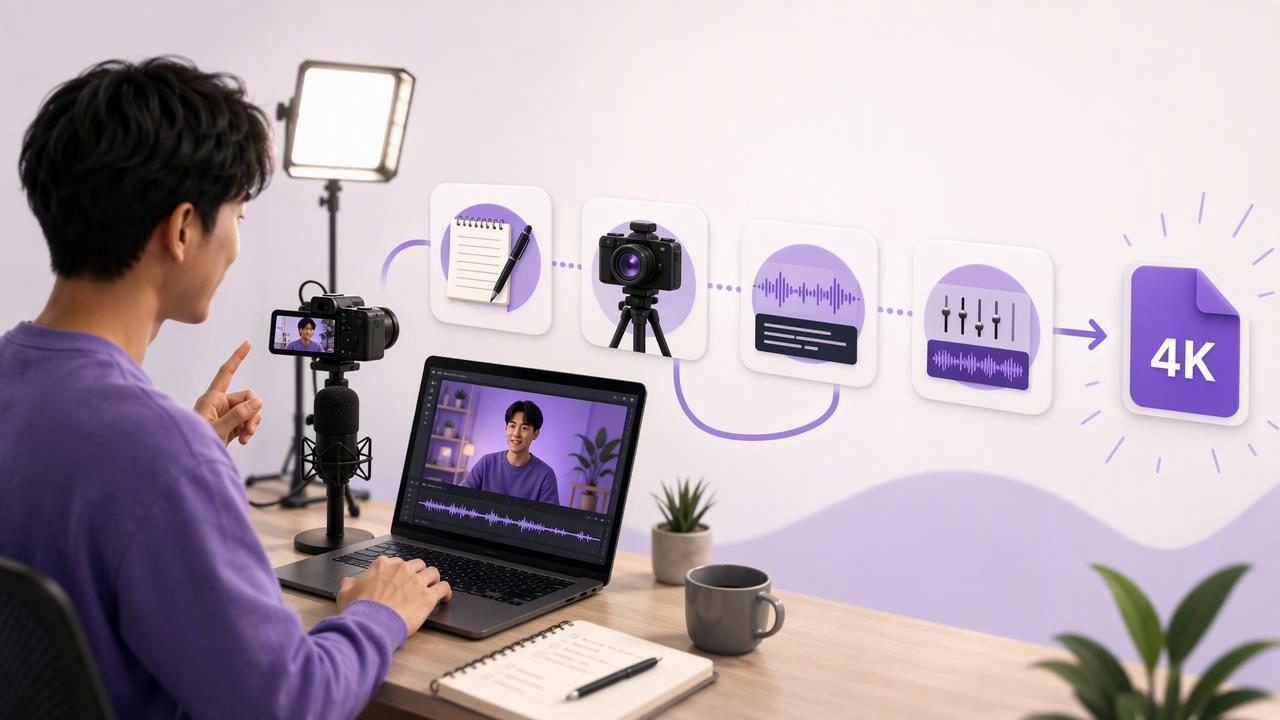
Learning how to get simpler creator workflows with a 4K recording app is less about adding more production tools and more about reducing unnecessary steps. For solo creators, marketers, coaches, and small teams, the typical video process can become fragmented quickly: write a script in one app, record in another, edit elsewhere, create captions in a browser, and then reformat the result for each social platform.
A simpler workflow keeps the essential stages connected: prepare a clear script, record a well-framed video, check audio, make only necessary edits, add accessible subtitles, and export a version that fits the destination. A capable iPhone recording setup can support this process while preserving the quality needed for YouTube, Instagram, TikTok, product videos, presentations, and internal updates.
This guide explains how to design a practical script-to-video workflow around 4K recording without making every video feel like a production project.
Why Creator Workflows Become Complicated
Most creator workflows do not become difficult because of one major problem. They become difficult because of repeated friction: re-recording forgotten lines, hunting for the latest script version, correcting uneven pacing, moving large video files between devices, or spending too long creating captions.
4K recording can add another consideration. Higher-resolution video gives you more room to crop, reframe, and preserve detail, but it also creates larger files. If you record every take at maximum quality without a clear plan, storage management and transfer time can interrupt your publishing schedule.
The goal is not to use 4K for every single video. The goal is to choose a repeatable process that gives you enough quality for the final use while keeping filming manageable.
Start With One Repeatable Video Format
A simpler workflow begins before you open a camera app. Decide on a video format you can use repeatedly. This removes decision fatigue and helps you write scripts that fit the way you actually record.
For example, a creator making weekly 60-second educational videos could use this structure:
- Hook: State the problem in the first 3 to 5 seconds.
- Context: Explain why the problem matters.
- Three useful points: Deliver the teaching section.
- Next step: Give the viewer one action to take.
Instead of writing a 250-word block of text, write each section as a short paragraph. This makes it easier to pause naturally, re-record one section if necessary, and trim the final video without losing the entire take.
A simple creator workflow is built around decisions you make once, not decisions you have to make before every recording.
Use Scripts That Sound Like Speech
Many creators make recording harder by writing for reading rather than speaking. A script can be factually correct but still feel awkward on camera when it contains long sentences, stacked clauses, or vocabulary you would never use in conversation.
Read the script aloud before filming. If a sentence forces you to take a breath halfway through, split it. If you stumble on a phrase twice, replace it with simpler language. Your on-camera delivery will usually improve more from this editing pass than from adding another visual effect later.
Use formatting to make the script easier to follow:
- Keep paragraphs to one idea each.
- Add line breaks before transitions.
- Use punctuation to indicate breathing points.
- Write numbers as words when that makes them easier to say.
- Highlight only the words that need emphasis.
Set Up the Camera Before You Record
A 4K recording app is most useful when the basics are already in place. Resolution cannot fix poor framing, weak lighting, or unclear sound. Spend two minutes setting up before a longer recording session.
| Setup area | Practical check | Why it simplifies editing |
|---|---|---|
| Camera height | Place the lens close to eye level. | Creates a more natural, direct appearance. |
| Framing | Leave modest space above the head and keep the subject centered. | Provides room for vertical crops or subtitles. |
| Lighting | Face a window or use a soft front light. | Reduces the need to brighten footage later. |
| Background | Remove visual clutter and avoid distracting movement. | Keeps viewer attention on the message. |
| Audio | Record a short test and listen with headphones if possible. | Helps catch room echo, noise, or low volume early. |
For talking-head content, position the phone close enough that your face is well lit and clearly visible. A wider shot may look cinematic, but it can make captions, facial expression, and eye contact less effective on a small mobile screen.
Choose 4K Recording With a Purpose
4K recording is valuable when you need detail, flexibility, or a polished master file. It can be especially useful for product demonstrations, tutorials that show small objects, evergreen website videos, or footage you may want to crop later for different aspect ratios.
For instance, imagine you film a two-minute tutorial in landscape orientation for YouTube. If the footage is recorded in 4K, you may have more flexibility to create a tighter vertical crop for a short social clip while retaining usable detail. That does not mean every crop will work; the subject still needs to be framed with repurposing in mind.
Before selecting a recording setting, consider these trade-offs:
- File size: Higher-resolution footage generally uses more storage.
- Editing load: Older devices may handle larger files less smoothly.
- Platform delivery: Social platforms may compress uploaded video.
- Lighting: Resolution does not replace sufficient light.
- Final use: A quick internal update may not need the same settings as a product launch video.
Check available phone storage before a recording day, particularly if you plan to film several takes at 4K. Keep only the takes you may realistically use and back up approved final files according to your own storage process.
Use a Teleprompter Workflow to Reduce Retakes
Memorizing a full script can slow down production, especially when you are recording technical explanations, product details, names, numbers, or legal language. Reading a script can be faster, but placing the text too far from the lens often makes eye movement obvious.
An iPhone teleprompter workflow places the script close to the camera so you can follow your points while maintaining a more natural connection with the viewer. The best result usually comes from a combination of short script lines, a comfortable scrolling pace, and a little rehearsal.
There are three common scrolling approaches:
- Fixed-speed scrolling: Useful when you know your delivery pace and have a tightly written script.
- Timed scrolling: Useful for a video with a planned duration, such as a 30-second ad or a presentation segment.
- Voice-following scrolling: Useful when your natural speaking pace changes from line to line.
These modes have practical limits. Voice-based tracking can be affected by speech clarity, background noise, pauses, and language or device support. Fixed scrolling can drift if you speak faster or slower than expected. Treat the teleprompter as a guide rather than a reason to read every word with identical rhythm.
For a useful walkthrough of camera placement, script formatting, and recording while reading, see CueCam’s guide to recording video while reading a script.
Follow a Concrete 20-Minute Recording Routine
Here is a realistic example for recording one 90-second educational video. It is designed to prevent perfectionism from taking over the session.
- Minutes 1–4: Review the script aloud. Simplify any sentence that feels unnatural.
- Minutes 5–7: Set the phone at eye level, check framing, and clear the background.
- Minutes 8–9: Record a 10-second audio and lighting test. Listen for traffic, HVAC noise, clipping, or echo.
- Minutes 10–14: Record the first full take. If you miss a minor word but the meaning remains clear, continue.
- Minutes 15–18: Record a second take only if the first has a meaningful issue, such as an incorrect claim, major stumble, or audio interruption.
- Minutes 19–20: Choose the stronger take and trim obvious dead space at the beginning and end.
This routine deliberately limits retakes. Many videos become less natural after too many attempts because delivery becomes overly controlled. A clear, accurate, conversational second take is often more useful than a tenth take that sounds rehearsed.
Add Subtitles as Part of the Recording Process
Subtitles are not merely an export task. They affect how people consume your video, particularly when they are watching with sound off, in a noisy environment, or in a language that is not their first language.
Plan for captions while scripting. Avoid filling every moment with fast speech, and leave a small pause between ideas. This helps viewers read the text while following the video. Keep on-screen text away from edges where platform buttons, captions, or interface elements may cover it.
Automated captions can save time, but they should be reviewed before publishing. Proper names, abbreviations, industry terms, accents, and homophones can be transcribed incorrectly. If your video includes an important price, date, product name, medical statement, or instruction, check that line manually.
On-device subtitle tools can also be a useful option for creators who prefer not to upload scripts or footage to a third-party service. However, caption availability, language coverage, and processing performance can vary by device and language, so verify the result before relying on it for a client-facing or public video.
Create Fewer Exports, Not More
A common workflow mistake is creating several slightly different versions before knowing where the video will be published. Start with one high-quality master, then create only the versions that serve a real distribution need.
For example, a creator could make:
- One landscape master for a website or YouTube.
- One vertical 9:16 version for short-form social video.
- One square or vertical crop only if a specific campaign requires it.
Keep a consistent naming system so you can identify files later:
topic-format-platform-version
customer-onboarding-vertical-instagram-v1
customer-onboarding-landscape-youtube-v1
This small habit prevents accidental uploads of unfinished edits and makes it easier to find the master when you need to update captions or create a new crop.
Build a Workflow You Can Maintain
The best creator workflow is not the one with the most features. It is the one you can repeat when you are busy. Keep your scripts conversational, use a consistent recording setup, test audio before the full take, choose 4K when it supports the intended use, and review captions before publishing.
When your recording, script-reading, basic editing, and subtitle steps are connected, you spend less time switching tools and more time improving the message. That is what makes a 4K recording workflow genuinely simpler: not higher resolution alone, but fewer barriers between an idea and a clear finished video.
