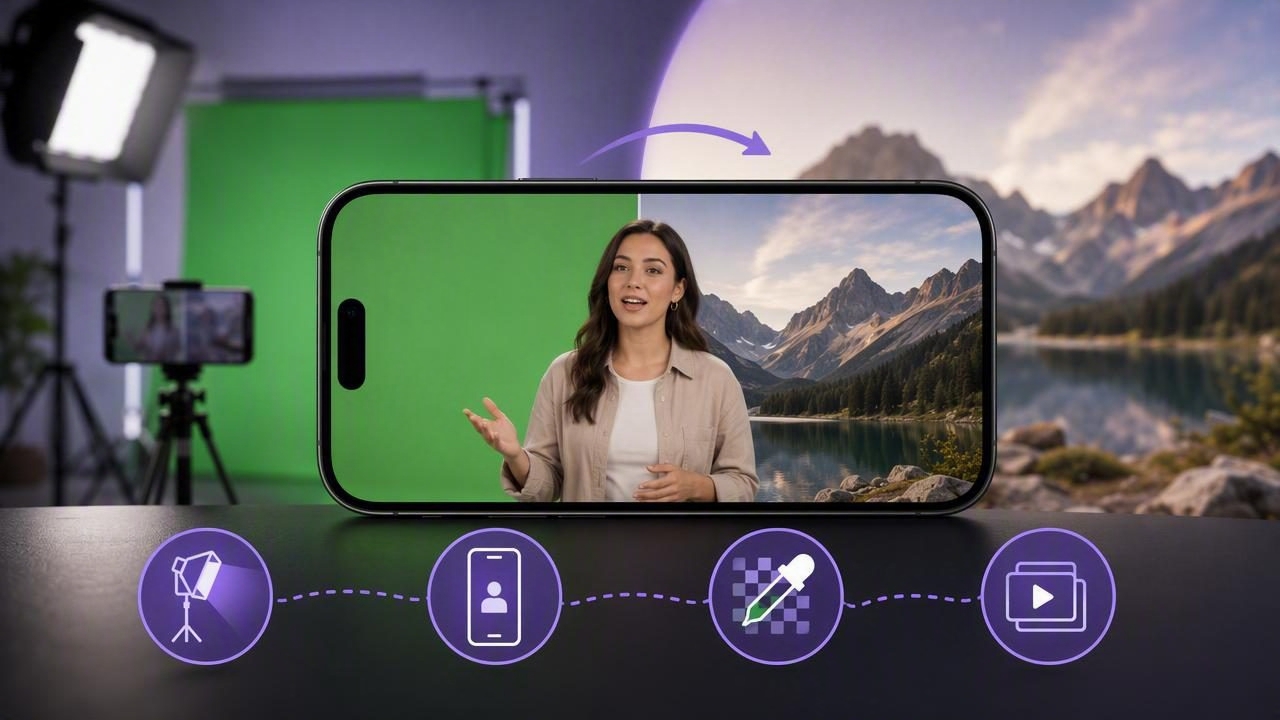
A green screen video editor can turn a simple iPhone recording into a polished explainer, tutorial, social post, or presentation. By removing a solid-colored background and replacing it with another image or video, you can record in a small room while appearing in a studio, beside slides, or in a location that supports your message.
However, a convincing green screen effect does not start in the editor. The quality of the final background replacement depends heavily on the footage you capture: even lighting, sensible wardrobe choices, stable framing, and a clean separation between you and the screen. Editing can improve a good recording, but it cannot fully repair harsh shadows, motion blur, or a background color that appears in your clothing.
This guide explains how to plan, shoot, and edit a green screen video on an iPhone, with a concrete example and practical limits to keep in mind.
What Does a Green Screen Video Editor Do?
A green screen video editor uses chroma keying. This is the process of identifying a selected color in a video—usually bright green—and making that color transparent. You can then place a replacement layer behind the person in the recording.
Green is commonly used because it differs clearly from most skin tones and is not often worn in everyday clothing. Blue screens can also work, particularly when green is part of the subject’s wardrobe or props. The best color is the one that creates the strongest contrast between the subject and the background.
Once the background is keyed out, you can place many types of visuals behind the subject:
- A branded office or studio image
- A slide deck, chart, or screen recording
- A product image or website demonstration
- A location video, such as a city scene or classroom
- A plain color, gradient, or subtle animated background
The goal is not simply to remove green. A good result makes the subject look naturally placed within the new visual environment.
Plan the Background Before You Record
Choose the replacement background before filming whenever possible. This makes it easier to decide how much space you need around your body, where to stand, and which way to gesture.
For example, imagine you are recording a 60-second tutorial about a new productivity feature. Your final background will show a screen recording on the right side of the frame. Stand slightly left of center while filming and avoid large hand movements into the right side. That leaves clear room for the screen recording and prevents your body from covering important details.
Use a background that matches the intended format:
| Video type | Helpful background choice | Composition tip |
|---|---|---|
| Vertical short-form video | Simple graphic or enlarged app screen | Keep text away from the top and bottom interface areas. |
| YouTube tutorial | Screen recording or slide sequence | Leave one side open for visual demonstrations. |
| Professional presentation | Subtle office, studio, or branded backdrop | Use restrained colors to keep attention on the speaker. |
| Product announcement | Product footage or close-up images | Match your gestures to the product’s on-screen position. |
Also consider the perspective of the final background. If the background looks as though the camera is at eye level, record yourself at a similar eye-level angle. A low-angle subject placed over an eye-level office image can look artificial even when the key is technically clean.
Set Up a Green Screen for Better Keying
You do not need a large production studio, but you do need a smooth, evenly lit color surface. A fabric screen, paper backdrop, or painted wall can work if the color is consistent and there are few wrinkles or reflective areas.
Keep Distance Between You and the Screen
Stand several feet in front of the green screen when space allows. This reduces shadows on the fabric and helps prevent green light from reflecting onto your face, hair, shoulders, or clothing. That reflected green tint is called color spill, and it is one of the most common reasons edges look unnatural after editing.
Distance also helps the editor distinguish you from the screen. If your hair or shoulders touch the backdrop, their edges can blend into the key color and disappear in places.
Light the Screen and the Subject Separately
Try to light the screen evenly from side to side. Uneven lighting creates darker and brighter green areas, which forces the editor to remove a wider range of colors. Removing too broad a range can accidentally affect hair, skin detail, or objects near the screen.
Then light yourself independently. A soft front light can improve facial detail, while a modest side or back light may help separate you from the background. You do not need to make the scene overly bright; you need it to be consistent. Before recording the full script, capture a short test clip and inspect it closely around your hair, fingers, shoulders, and glasses.
Choose Clothing and Props Carefully
Do not wear green when using a green screen. Any matching green areas may become transparent in the final composite. This includes bright green shirts, patterned clothing, jewelry, product packaging, and reflective items that pick up green light.
Very fine details can be challenging as well. Loose hair, transparent glasses frames, mesh fabric, and fast-moving hands may require more careful editing. Solid colors with clear contrast against the screen generally produce the easiest results.
Record iPhone Footage That Is Easier to Edit
Use the rear camera if your setup allows, as it may offer higher image quality than the front camera on many iPhone models. Place the phone on a stable tripod or mount at eye level. A stable camera matters because a moving subject against a moving camera makes edge cleanup and background placement more difficult.
Frame yourself with enough space around your head, arms, and hands. Avoid cropping tightly at the top of the head or at the elbows when you expect to use gestures. If you are filming vertically, leave room for captions and platform interface elements.
Resolution and frame rate should fit the project rather than follow a single rule. Higher-resolution footage can preserve more detail around edges, but it also creates larger files and may take longer to process. A higher frame rate can make rapid movement look smoother, but it does not solve poor lighting or motion blur. Choose a setting your device can record reliably and that matches the rest of your footage.
Record a brief audio test before the main take. Listen for room echo, traffic, air conditioning, clothing rustle, and distance from the microphone. A clean visual key is less useful if viewers struggle to hear the message.
How to Edit a Green Screen Video Step by Step
- Import the foreground clip. Add the iPhone recording in which you appear in front of the green screen.
- Place the new background underneath it. This could be an image, video, screen recording, or presentation slide.
- Apply the chroma key or background removal control. Select the green background color, then adjust the key gradually rather than using the strongest possible setting immediately.
- Refine the edges. Look for green outlines around hair and shoulders, missing parts of clothing, or flickering near moving hands. Adjust tolerance, feathering, spill reduction, or similar available controls carefully.
- Resize and position the subject. Match the frame to the background layout. Keep your eyeline and gestures aligned with any slides or product visuals.
- Check the full clip before export. Problems may appear only during movement, not in a paused frame.
A useful editing principle is to make small adjustments and review the result at normal playback speed. An aggressive key can remove all visible green but also create a cutout look, especially around hair. A slightly imperfect edge may look more natural than an overly harsh one.
A Practical Example: Turning a Home Recording Into a Tutorial
Suppose you are making a vertical video that explains three steps for organizing a project. You have a green fabric backdrop, an iPhone on a tripod, and a screen recording of the project board.
First, design the visual layout: you will stand on the left third of the screen, while the project board occupies the right two-thirds. Film from the waist up, leaving a little headroom and enough space for hand gestures. Wear a navy or neutral-colored top rather than green. Light the backdrop evenly and stand far enough forward that your shoulders do not cast strong shadows.
During the recording, say, “Start by grouping tasks by priority,” while pointing toward the right side where the project board will later appear. Pause briefly between the three steps. These pauses make it easier to align each on-screen highlight with the spoken explanation.
In the green screen video editor, place the screen recording beneath your clip, remove the green background, and scale the project board so labels remain readable on a phone screen. Add subtitles after the layout is final, since captions should not cover the most important information. Review the video on a small display before posting; details that look clear on a desktop may be too small in a vertical feed.
Common Green Screen Problems and Fixes
- Green halo around hair or shoulders: Move farther from the screen, reduce spill with available controls, and improve separation lighting.
- Parts of clothing disappear: Change clothing or switch to a background color that contrasts better with the subject.
- Patchy removal across the screen: Light the backdrop more evenly and smooth wrinkles or folds.
- Edges flicker during movement: Reduce fast gestures, improve lighting, and avoid applying an overly aggressive key.
- The result looks pasted on: Match the subject’s brightness and color temperature to the replacement background.
Green screen editing has real limitations. Complex hair, transparent materials, low-light footage, heavy compression, and motion blur can require more cleanup than a quick mobile edit allows. In some cases, filming against a clean real-world background is the more efficient choice.
Make the Script Work With the Visual
Green screen videos are strongest when the script directs attention intentionally. Instead of saying, “Here are the results,” say, “Notice the highlighted section on the right,” then give the viewer a moment to look. Keep spoken references consistent with the final layout, and avoid vague phrases such as “over there” if the visual could move during editing.
If you are reading a script while recording, keep the camera close to your eyeline so your delivery still feels direct. For an iPhone workflow that combines script reading with recording, CueCam provides a practical guide to recording video while reading a script. The final priority is simple: use the green screen effect to clarify the message, not distract from it.
