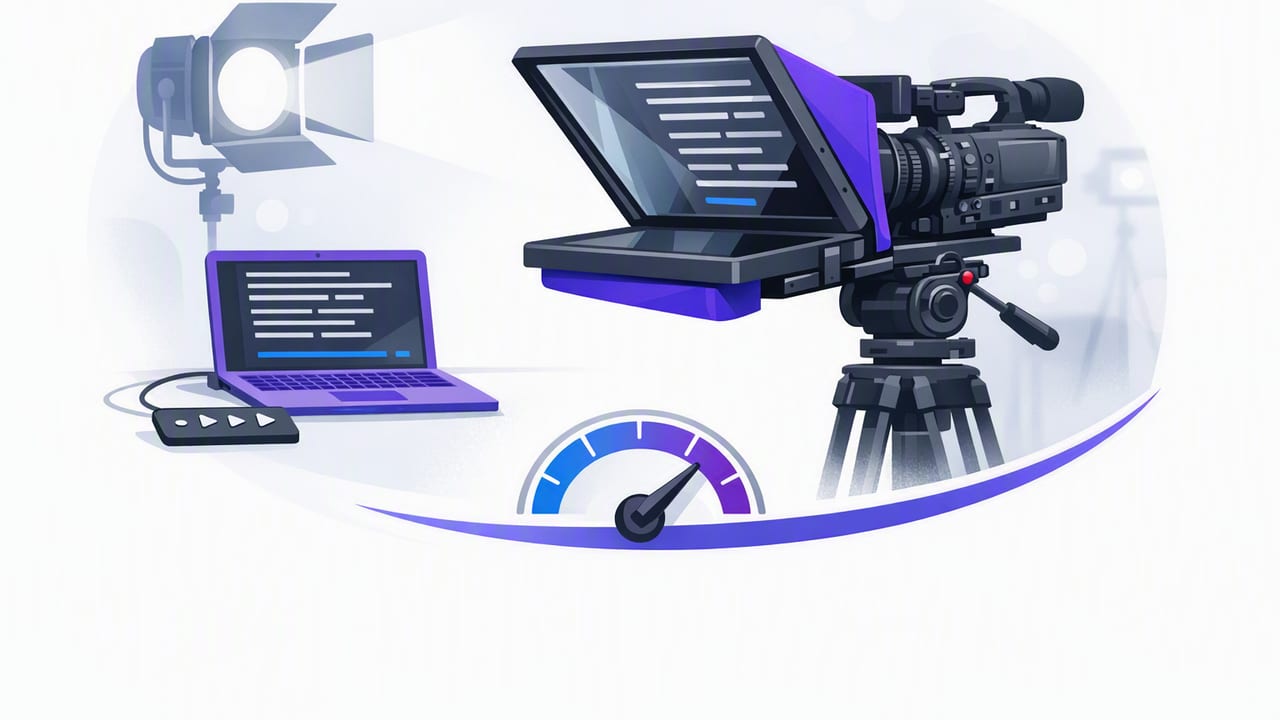
A fixed speed teleprompter is the simplest way to keep a script moving at a steady pace while you maintain eye contact with the camera. Unlike voice-follow modes that react to your delivery, fixed speed scrolling is predictable: you set the speed once, rehearse briefly, and record with fewer surprises.
That predictability is exactly why fixed speed is a favorite for creators filming on iPhone—especially for tutorials, product explainers, news-style updates, and any video where you want a clean, consistent cadence. The tradeoff is that you must match the scroll. This guide shows how to choose the right speed, format scripts for readability, and build a workflow that stays natural on camera.
What “fixed speed” really means (and why it works)
In a fixed speed teleprompter mode, text scrolls upward at a constant rate (e.g., “Speed 6” or “120 wpm”). You’re essentially locking your script to a metronome. This helps when:
- You want consistent pacing across multiple takes or a multi-part series.
- You’re filming B-roll overlays and need the voiceover to match consistent timing.
- You’re easily distracted by speed changes in voice-follow systems.
- Your recording environment is noisy, making voice tracking less reliable.
Fixed speed shines when you treat it like a performance tool: you set the tempo, rehearse once, and deliver.
Fixed speed vs timed vs voice-follow: which should you use?
Many iPhone teleprompter apps offer multiple scrolling modes. Here’s a practical comparison to help you choose the right one for your script and filming style.
| Mode | How it scrolls | Best for | Main risk |
|---|---|---|---|
| Fixed speed teleprompter | Constant rate, you match it | Training consistency, repeatable takes, structured scripts | Rushing or lagging if speed isn’t dialed in |
| Timed scrolling | Finishes script in a set duration | Ads with strict runtime, reels/shorts length targets | Timing pressure can reduce natural delivery |
| Voice-follow (word tracking) | Auto-adjusts to your speaking pace | Conversational delivery, longer reads, imperfect rehearsal | Can drift in noisy rooms or with inconsistent mic input |
If you’re building a repeatable creator workflow, fixed speed is often the easiest to standardize—especially when multiple videos need the same “brand cadence.”
Step 1: Pick a realistic speaking pace (WPM)
Your scroll speed should reflect how you actually speak on camera, not how you speak in daily conversation. For many creators, on-camera speech is slightly slower and more deliberate.
Common ranges to start with
- 110–130 WPM: calm, instructional, accessible pacing
- 130–155 WPM: upbeat but still clear (common for YouTube)
- 155–180 WPM: fast, energetic, but easier to sound “salesy” or rushed
Practical tip: If you’re unsure, start at 135 WPM equivalent and adjust from there.
Step 2: Convert words-per-minute into a fixed scroll speed
Some apps let you set WPM directly; others use a slider. Either way, you can calibrate your fixed speed teleprompter with a short test script.
A simple calibration method (no special tools)
- Paste a 120–180 word paragraph you can read comfortably.
- Set the teleprompter to a mid-range speed.
- Record yourself reading once without forcing your pace.
- Adjust speed so the text “stays with you” naturally—no sprinting, no waiting.
When it’s correct, you should feel like you’re performing, not chasing the script.
Optional: a quick math check
If you want a sanity check on your pacing, here’s a simple way to estimate your natural WPM using any timer:
WPM = (words_in_test / seconds_to_read) * 60
Example: 150 words in 68 seconds → (150/68)*60 ≈ 132 WPM.
Step 3: Format the script so fixed speed feels natural
Most “teleprompter stiffness” comes from script formatting, not from the scrolling mode. Fixed speed just reveals the issues faster. Use these formatting principles to make your delivery sound human.
Use short lines and intentional pauses
- Break long sentences into two lines where you would naturally breathe.
- Add blank lines between sections to reset your face and tone.
- Use ellipses sparingly to indicate a slow beat.
Write for the ear, not the page
- Prefer contractions: “you’ll” instead of “you will.”
- Replace complex clauses with simpler statements.
- Read it out loud once and remove any tongue-twisters.
Highlight the “anchor words”
In fixed speed mode, you want your eyes to land on key words that carry meaning. Consider using bold for emphasis (if your prompter supports it) or ALL CAPS sparingly for cues like PAUSE or SMILE.
Rule of thumb: If you can’t deliver the sentence naturally while looking up every few words, the sentence is too long.
Step 4: Use “speed bump” techniques for tricky lines
Even with a good baseline speed, certain parts of a script tend to derail you: product names, numbers, URLs, or lists. These techniques keep fixed speed teleprompter scrolling from forcing you into a rushed read.
Technique A: Add micro-pauses into the script
Insert a short pause marker before a list or number-heavy line. For example:
- [beat] “Here are three things…”
- [slow] “That’s one hundred and twenty dollars…”
Technique B: Rephrase numbers
Instead of “$127.49,” say “about one twenty-seven.” Instead of “3.7%,” say “just under four percent.” The teleprompter doesn’t care, but your mouth does.
Technique C: Turn lists into rhythm
Lists are where creators either speed up or go flat. Give each item a consistent structure:
- “First: …”
- “Second: …”
- “Third: …”
Step 5: Nail eye contact (without staring)
The goal of any iPhone teleprompter setup is the illusion of direct eye contact. Fixed speed helps because it encourages steady micro-movements rather than sudden jumps when the text stalls or accelerates.
Three on-camera habits that look natural
- Keep your head still, let your eyes move. Big head movement reads like “reading.”
- Look up at the lens at sentence ends. Use punctuation as your cue to reconnect.
- Smile on transitions. A small expression change hides tiny eye shifts.
Step 6: Make fixed speed reliable in a real creator workflow
Consistency is where fixed speed teleprompter mode becomes a production advantage. Here’s a workflow that keeps your takes repeatable from one shoot to the next.
Pre-shoot checklist
- Lock your camera settings (frame rate, resolution, exposure) so retakes match.
- Use an external mic when possible for cleaner audio and less editing.
- Turn on stabilization if you’re handheld or on a light tripod.
- Set your teleprompter font size so you can read with minimal eye travel.
During recording: a simple take strategy
- Do one “warm take” to settle in (don’t plan to use it).
- Record two clean takes back-to-back at the same speed.
- If you stumble on one line, don’t restart—pause, breathe, and continue. You can trim later.
Post: keep it fast
Fixed speed is perfect for quick edits because pacing is consistent. A basic post flow:
- Trim mistakes and long breaths.
- Resize/crop for TikTok/Instagram or keep 16:9 for YouTube.
- Add on-device subtitles for accessibility and retention (especially for short-form).
Common fixed speed teleprompter problems (and quick fixes)
“I sound rushed.”
- Reduce speed by 5–10%.
- Shorten sentences and remove filler phrases you don’t naturally say.
- Add a blank line before key points to force a breath.
“I keep falling behind the scroll.”
- Increase font size so you can read faster with fewer eye movements.
- Reduce paragraph density; use more line breaks.
- Practice the first 20 seconds until it feels effortless—starts are where you lag most.
“My eyes look like they’re scanning.”
- Center the text closer to the lens area.
- Use shorter line length (narrower text block if available).
- Slow down slightly and emphasize punctuation—your eyes will settle.
Fixed speed teleprompter cheat sheet (settings that usually work)
Use these as starting points, then adjust based on your voice and script density.
- Explainers / tutorials: ~120–140 WPM equivalent
- Short-form hooks + fast tips: ~145–165 WPM equivalent
- Serious updates / thoughtful commentary: ~110–130 WPM equivalent
- Font size: large enough that you read with minimal eye travel
- Line breaks: every 8–12 words for conversational delivery
Privacy and offline workflows: why they matter for scripting
Teleprompter scripts often contain sensitive details: brand partnerships, pricing, launch dates, client names, or personal stories. For creators who care about privacy, an on-device workflow is a practical choice: your scripts, recordings, and subtitles can stay on your phone, without needing to upload text to a server just to get captions or edits.
It also improves reliability: you can film and generate subtitles anywhere—on a plane, backstage, or in a remote location—without depending on internet quality.
Putting it all together
A fixed speed teleprompter is less about “reading” and more about performing to a steady tempo. Set a realistic pace, format the script for the ear, rehearse just enough to remove friction, then record multiple consistent takes. Once you lock in your baseline speed, you’ll spend less time fighting delivery and more time refining content.
If you’re looking for an iPhone teleprompter workflow that combines fixed-speed scrolling with camera recording and offline subtitles, apps like CueCam are designed around that script-to-video process while keeping work on-device.
