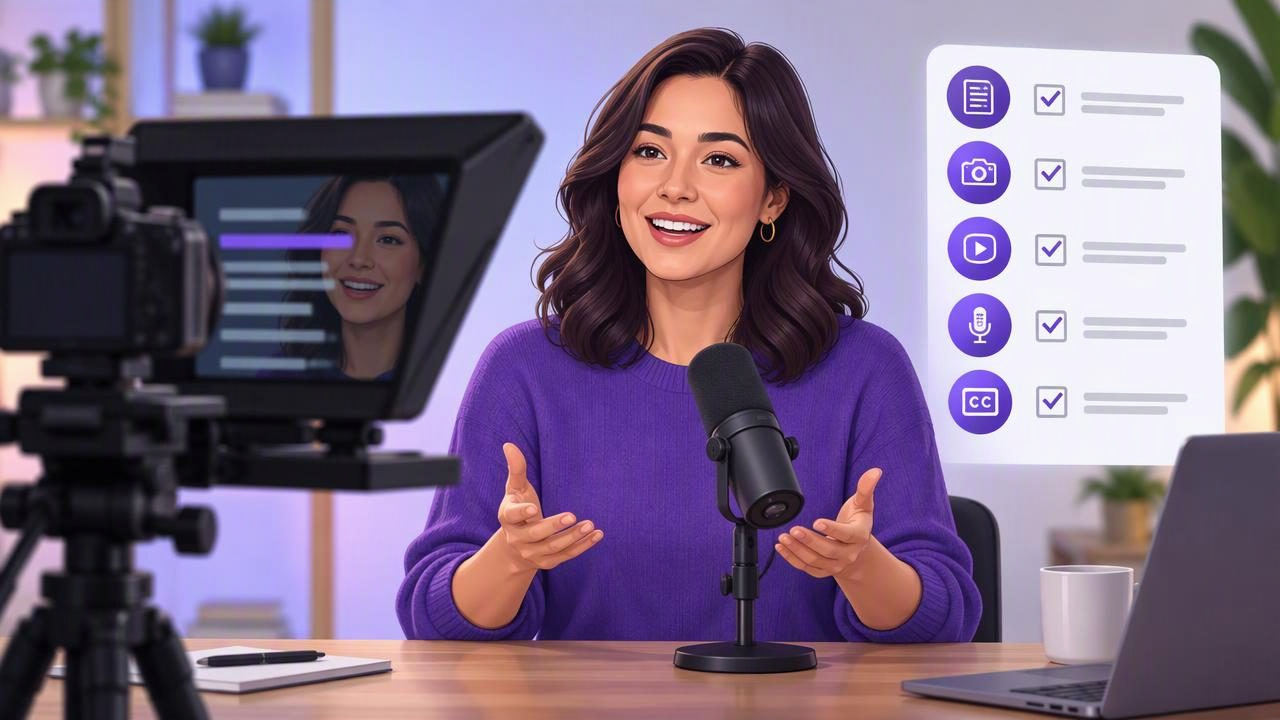
A short podcast introduction can set the tone for an entire episode. On video, it also needs to feel direct and natural—not like someone reading a paragraph from a page. A video teleprompter can help you keep your key lines in view while looking toward the camera, but a good result still depends on the script, setup, and delivery.
Use this film-a-podcast-introduction checklist with a video teleprompter to prepare a concise opening, choose a comfortable reading pace, test your sound, and review the recording before you publish. The steps work whether you record a new intro for each episode or create a reusable show introduction.
Start with one clear job for the introduction
Before opening a camera app, decide what the introduction needs to do. A podcast intro may welcome viewers, identify the show, introduce the host, explain the episode’s subject, or point to a next step. Trying to do all of that in a long opening can make the first moments feel slow.
For a recurring show, keep the standard show description brief and add a sentence specific to the episode. For a one-off video podcast, prioritize the topic and the reason to keep watching. Write for the person who has not heard of the show yet: avoid inside references and explain unfamiliar terms in plain language.
- Choose one main purpose: welcome, identify, preview, or invite.
- Set a target length: around 20–30 seconds is a useful starting point for a spoken intro, not a strict rule.
- Decide on the call to action: include one only if it fits naturally.
Podcast introduction checklist before recording
- Draft for speech. Use short sentences, familiar words, and contractions where they match your voice. A sentence that looks polished on a screen may be awkward to say aloud.
- Read it out loud. Mark phrases that make you stumble, run out of breath, or sound unlike you. Rewrite those lines rather than trying to perform around them.
- Check names and details. Confirm the pronunciation of guest names, the episode topic, and any dates or figures. Spell pronunciation cues phonetically in your script if needed.
- Remove unnecessary setup. Cut repeated greetings, long background explanations, and apologies about getting started. Give viewers a reason to stay early.
- Make a final script version. Keep the wording you intend to say in one place, and avoid editing it while recording unless a correction is needed.
For example, instead of opening with a long explanation of how the episode came together, try: “Welcome to The Small Studio Podcast. I’m Maya Chen. Today, we’re looking at three ways to make a home recording sound clearer, starting with the room you already have.” This identifies the show and host, sets a topic, and previews the discussion without a lengthy lead-in.
Format the script for a video teleprompter
A teleprompter script should be easy to scan as it moves. Break the copy into short thought groups instead of placing a full introduction in one dense paragraph. Add line breaks where you would naturally pause or take a breath. Put stage directions in brackets, such as [smile] or [pause], and make sure they are visually distinct from the spoken words.
Keep the text close to the camera’s position when possible. If the words are displayed far below or to the side of the lens, your eyes may visibly travel away from the viewer. Use a font size you can read comfortably at your normal recording distance, then adjust the amount of text on screen so you are not rushing to keep up.
Rehearse once with the teleprompter before recording. The aim is not to memorize every line; it is to know the meaning and rhythm well enough to deliver each sentence conversationally. If a line feels unnatural at rehearsal speed, revise it before you press record.
Set up the iPhone, framing, and reading pace
Place the iPhone securely at eye level, with the camera lens near the text’s position. Frame yourself with a little space above your head and enough room to gesture if that suits your style. Check the preview for distracting background details, glare on glasses, and reflections from nearby screens.
Choose a pace that gives you time to understand each sentence as it appears. Fixed-speed scrolling can be useful when you have rehearsed a steady delivery. Timed scrolling lets you set a duration for the script. Voice-following word tracking can move with spoken delivery, but its behavior may depend on the app, device, language, and recording conditions. Test the selected mode with your actual script rather than assuming it will follow every voice or pronunciation perfectly.
Make a short practice pass. If your eyes dart across the screen, enlarge the text or shorten the visible lines. If you are speaking too quickly, slow the scroll or add line breaks at natural pauses. If you lose your place, stop and adjust the layout instead of trying to push through a setup that is not working.
Run a short audio and camera test
Before recording the full intro, capture a brief test using the same room, microphone arrangement, framing, and teleprompter pace you plan to use. Say a few lines at your intended volume, then play the clip back with headphones if available. Listen for room echo, background noise, clipped words, and changes in volume when you turn your head.
Check that your voice is clear and that the image is steady and correctly framed. If something needs fixing, change one thing at a time—such as your distance from the microphone or your position in the room—and record another short test. Do not assume that the live preview tells you exactly how the saved recording will sound.
Also confirm that the phone has enough available space for the recording you plan to make. Higher-resolution video can require more storage, so choose a recording setting that suits your intended platform and available space. A 4K option is not automatically necessary for every podcast introduction.
Record the introduction in manageable takes
Once the test sounds and looks acceptable, record the intro. Take a breath before the first line, look toward the lens, and speak to one imagined viewer rather than performing to a crowd. Allow a brief beat before and after the words; these small margins make it easier to trim the clip cleanly.
If you make a mistake, pause, reset, and repeat the sentence or section. You do not need to restart the entire recording after every stumble. When you review the takes, choose the one with the clearest delivery and most consistent sound—not necessarily the one with the fewest imperfections.
For a reusable show intro, record the standard portion separately from episode-specific details if your editing workflow allows it. That makes it easier to update the topic line without rerecording every part. Keep a note of which version is current so an older introduction is not accidentally reused.
Review the clip before adding captions
Watch the saved video from beginning to end. Check whether your gaze stays near the lens, the opening begins promptly, and the last sentence ends cleanly. Listen again for missed words, mouth noise, sudden changes in loudness, or a distracting pause. Trim only after you have identified the best take and the sections you want to keep.
Captions can improve access and help viewers follow speech when they watch without sound, but they need a review. Automatic or on-device subtitle generation can vary by language, device, audio quality, and the words being spoken. Proper names, specialist terms, and similar-sounding words deserve particular attention. Correct the text and timing where your tools allow, and do not treat automated captions as a guaranteed transcript.
Before sharing, check the final export in the destination format. Look for cut-off captions, text hidden by platform interface elements, or framing that no longer suits a vertical or horizontal layout. Keep an unedited original if you may need to make a different version later.
Quick checklist: from script to finished intro
| Stage | Check |
|---|---|
| Script | One clear purpose, concise spoken wording, verified names, and a natural final line. |
| Teleprompter | Readable text, useful line breaks, tested pace, and text positioned close to the lens. |
| Setup | Stable eye-level framing, suitable background, and enough storage for the chosen recording setting. |
| Audio | A short test recording has been played back and checked for clarity and noise. |
| Review | The best take is selected, the saved clip is checked, and captions are reviewed before publishing. |
Make the workflow repeatable
A reliable podcast intro process is a small sequence: write for speech, format for the prompter, test the setup, record a few manageable takes, and review the saved clip. Keep a reusable script outline, but update the episode-specific details each time. A little rehearsal usually does more for a natural delivery than trying to read faster or pack more information into the opening.
If you want a more detailed walkthrough of reading a script while recording, see CueCam’s guide to recording video while reading a script. Whatever tools you choose, test teleprompter tracking and subtitle behavior on your own device and with your own language and recording conditions before relying on them for a finished episode.
