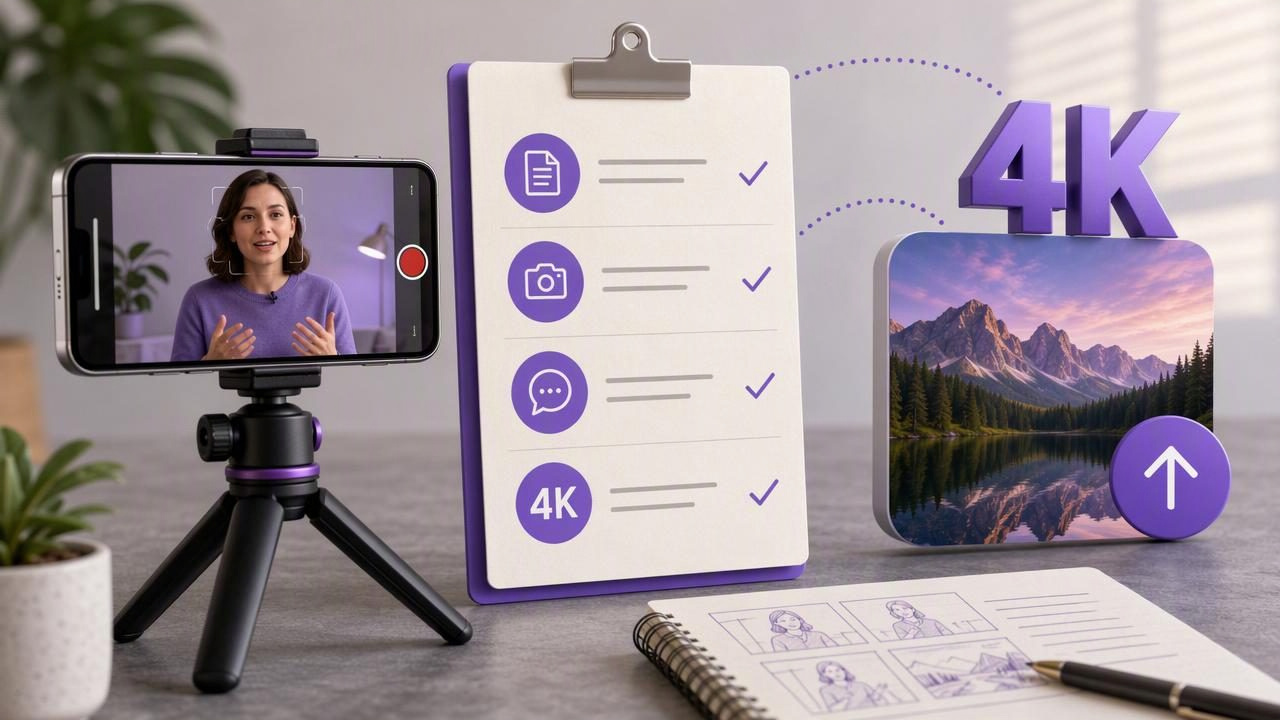
Publishing a sharp, well-paced video is not just about pressing record in 4K. A successful scripted video needs a clear message, readable script formatting, stable camera placement, usable audio, and an export that fits the platform where people will watch it.
This export a 4K scripted video checklist with creator video recorder workflow is designed for creators who record on an iPhone and want a repeatable process for talking-head videos, product explainers, tutorials, announcements, and short social clips. It focuses on the practical decisions that affect the final result: what to write, how to read naturally, when 4K is useful, and what to check before uploading.
Use the steps in order. Fixing a script or audio problem before recording is substantially easier than trying to rescue it after a long take.
Start With a Video Goal, Not a Resolution Setting
4K can preserve fine detail and give you more flexibility when cropping or resizing footage later. However, resolution alone does not make a video clear or effective. Before opening your creator video recorder, decide what one action or idea the viewer should take away.
For example, imagine you are recording a 75-second video introducing a new consultation service. Your goal may be: Help viewers understand who the consultation is for and invite them to book a call. That goal is more useful than simply deciding to make a 4K video.
Build the message around three parts:
- Hook: Name the viewer's problem in the first five to ten seconds.
- Value: Explain the useful outcome, process, or lesson in plain language.
- Next step: Give one clear action, such as visiting a page, sending a message, or saving the post.
A focused goal prevents a common scripted-video problem: recording a polished, high-resolution clip that says too many things at once.
Prepare a Script That Sounds Spoken
A script should support natural delivery, not make you sound as though you are reading a document aloud. Write the way you would explain the topic to one person. Short sentences are easier to follow on a teleprompter and easier for viewers to understand without replaying the video.
Format the script for comfortable reading
Use line breaks to separate complete thoughts. Put emphasis on only a few words, and write out terms that may be difficult to pronounce. If a sentence makes you run out of breath while rehearsing, split it.
Most teams do not need more meetings.
They need a simpler way to decide what happens next.

In this video, I will show you the three questions
we use before every project kickoff.
This formatting gives you natural pauses and reduces the urge to rush. For the 75-second consultation example, aim for approximately 150 to 175 words if you speak at a measured pace. Your ideal speed may be lower if the topic includes technical names, numbers, or demonstrations.
Read the script aloud once before recording. Mark any phrase you would not normally say in conversation and replace it. This rehearsal also reveals whether your opening earns attention quickly enough.
Choose 4K With the Final Edit in Mind
4K recording is especially useful when you expect to crop a horizontal recording into vertical and square versions, add a modest punch-in for emphasis, or preserve detail in product shots. It can also be appropriate when your publishing workflow and destination support high-resolution uploads.
But 4K has trade-offs. Files are larger, storage fills faster, transfers can take longer, and extended recording may create additional heat or battery demands depending on the iPhone, settings, environment, and duration. Social platforms may also recompress uploaded video, so viewers may not receive the exact file quality you exported.
| Production need | Useful recording choice | Reason |
|---|---|---|
| Close talking-head video with no crop planned | Use the resolution that fits your delivery needs | It can reduce file size and simplify storage. |
| One master clip for vertical and horizontal edits | Consider 4K | Extra image detail can provide more room for reframing. |
| Long recording session on limited storage | Check available space first | High-resolution footage can consume storage quickly. |
| Fast-turnaround social post | Prioritize lighting, audio, and clear delivery | These factors often matter more than maximum resolution. |
Record a short test clip before the full take. Confirm the intended camera setting is available on your particular iPhone, then play the footage back at full size. Check detail, exposure, motion, and whether your available storage is sufficient for multiple takes.
Set Up the iPhone for Natural Eye Contact
For a direct-to-camera scripted video, place the iPhone at eye level. A stack of stable books, tripod, or secure phone mount is better than holding the device. Looking slightly down at a phone often creates an unintentional, less engaged appearance, while placing it too high can look equally unnatural.
Keep the lens close to your script display area. The farther your eyes move from the lens, the more obvious it can be that you are reading. Position yourself far enough from the camera to avoid an overly wide facial perspective, while still leaving room for captions near the lower part of the frame.
Before recording, check these visual basics:
- Face a window or soft light source rather than placing it directly behind you.
- Clear distracting objects from the background.
- Leave some space above your head and around your shoulders for later resizing.
- Wear clothing that contrasts gently with the background and avoids distracting patterns.
- Clean the camera lens with a suitable soft cloth.
Practical framing rule: If captions will appear at the bottom of a vertical video, avoid placing important products, hand gestures, or on-screen text in that lower area.
Match Script Pace to Your Delivery
A teleprompter is most helpful when its pace supports how you actually speak. Start slowly enough to pause after key points. Pauses make the video easier to edit, give captions room to breathe, and make your delivery sound more confident.
For the consultation example, do not try to fit every service detail into 75 seconds. Say the essential point, pause, and move on:
If your projects keep starting late,
the problem may not be motivation.

It may be that no one has defined
the next decision clearly enough.
If your teleprompter offers voice-following word tracking, use it only after testing your normal speaking pace and pronunciation. Voice tracking performance can vary with device conditions, language, background noise, and how clearly you speak. Fixed-speed or timed scrolling may be more predictable for a tightly timed script. In either case, run one rehearsal while looking toward the lens, not just at the moving words.
Run a Short Audio Test Before Every Session
Viewers may forgive a slightly imperfect image more readily than unclear sound. Record a 10- to 15-second audio test in the exact location, with the same microphone setup and camera distance you will use for the final video.
Say a line with normal volume, then play it back through headphones if possible. Listen for echo, traffic, air conditioning, clothing noise, plosives on words beginning with “p” or “b,” and volume changes when you turn your head.
- Turn off or move away from avoidable noise sources.
- Keep the microphone position consistent for every take.
- Speak slightly slower rather than raising your voice in an echoing room.
- Record another short test after changing the room, microphone, or camera position.
Do not assume an external microphone will automatically solve every issue. Its result depends on placement, room acoustics, connection, recording configuration, and the specific hardware in use. A brief test is the reliable way to identify problems before the main take.
Record in Sections and Protect Your Best Take
Long one-take recordings can work, but they increase the chance that one stumble near the end ruins an otherwise strong performance. For a scripted video, record in sections when the message naturally changes: hook, explanation, example, and call to action.
Leave one or two seconds of silence before and after each section. Those pauses make trimming easier and reduce abrupt cuts. If you make a minor mistake, pause, restart the sentence, and continue. Do not stop immediately unless the mistake changes the meaning or breaks your concentration.
After a promising take, review only the critical points before moving on:
- Is the opening clearly audible?
- Do your eyes stay close to the lens?
- Is your face in focus and consistently lit?
- Did you state the central message without rushing?
- Did a notification, movement, or background sound interrupt the clip?
Add Captions and Edit for Viewing Without Sound
Captions help viewers follow a video in quiet spaces, noisy environments, or sound-off social feeds. They also make key terms easier to scan. Review automatically generated subtitles line by line, especially names, acronyms, product terms, and numbers.
Keep caption lines short enough to read comfortably. Place them where they do not cover your mouth, a product, or essential on-screen text. If you provide subtitles in another language, have a fluent reviewer check meaning and tone when accuracy is important. On-device caption availability and language support can vary by device and language, so verify the result before publishing.
During editing, trim repeated starts and overly long pauses, but do not remove every breath and beat. Slight pauses make a scripted video feel human. If you resize the video for vertical platforms, inspect the final crop rather than assuming the subject remains centered.
Final 4K Export Checklist
Before you export a 4K scripted video, complete this final review:
- Message: The first sentence identifies a relevant problem, benefit, or promise.
- Script: The video says one main thing and ends with one clear next step.
- Picture: Focus, exposure, framing, and orientation are correct.
- Audio: Speech is understandable from beginning to end.
- Captions: Text is accurate, readable, and safely positioned.
- Format: The aspect ratio matches the intended destination.
- Resolution: 4K is selected only when it serves the edit and publishing plan.
- Playback: Watch the exported file once on a phone before uploading.
Keep a master file when storage allows, then create platform-specific versions as needed. Remember that upload services can alter bitrate, resolution, and color through processing. Check the published post after it is live, particularly when clear text, detailed product footage, or subtitles are central to the message.
Build a Repeatable Script-to-Video Routine
The best creator workflow is one you can repeat without adding unnecessary friction. Prepare the spoken script, set the phone at eye level, make a brief audio test, record a test frame, capture the video in manageable sections, review captions, and inspect the exported file. This process gives 4K a purpose: preserving a well-made message rather than compensating for an unprepared recording.
If you want an iPhone workflow that combines script reading and recording, CueCam’s guide to recording video while reading a script offers additional setup guidance for keeping your delivery close to the camera lens.
