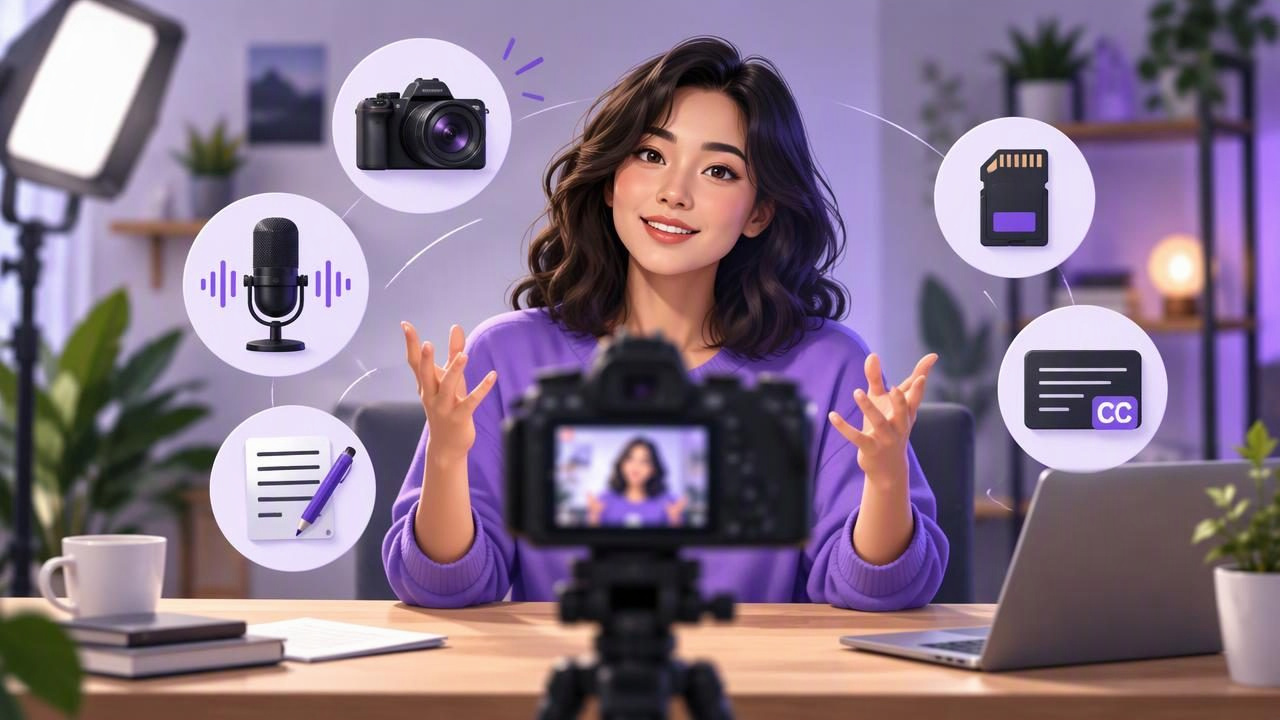
A 4K recording app for YouTube creators can help you capture detailed footage directly on an iPhone—but resolution is only one part of a watchable video. Lighting, stable framing, clear audio, and a delivery format suited to your channel matter just as much. If you plan to speak to camera, your ability to read naturally without looking away also affects the final result.
The right workflow brings those pieces together: prepare a concise script, position the camera and text, test your sound, record a short sample, and check the export before filming a full take. This guide explains what to look for in an iPhone recording app and how to decide when 4K is useful.
What 4K recording does—and does not—do
4K describes the dimensions of the video image, commonly 3840 by 2160 pixels. Compared with lower-resolution footage, it can preserve more detail and give you some flexibility to crop or reframe during editing. That can be useful for a YouTube video where you want a close-up from a wider shot, provided the original framing leaves room to crop.
Resolution alone does not make footage look professional. A dim room can still look noisy, a shaky phone can still distract, and a distant microphone can still make speech hard to understand. Higher-resolution files may also take up more storage and require more time to transfer or edit. YouTube processes uploads for different playback qualities, so viewers may not immediately see the highest resolution, depending on the upload and their connection.
Think of 4K as a capture option, not a quality guarantee. Choose it when the extra detail or cropping flexibility serves your video and your device has enough available space. For a quick update or a tightly framed talking-head video, a lower resolution may be a more practical choice.
What to look for in a 4K recording app
Before choosing an app, check whether its recording controls fit the way you make videos. A useful app should make it straightforward to set up the shot, monitor the recording, and create a file that suits your intended destination. Consider these points:
- Resolution and frame-rate options: Confirm which recording choices are available on your iPhone and whether they match your project. A higher frame rate is not automatically better; consistency with the rest of your footage matters.
- Stable framing: Look for a reliable way to position the phone and confirm that the image is level and composed before recording.
- Audio input and monitoring: Check the app and device setup you plan to use. Do not assume every external microphone works with every phone or app. A short recording is the practical way to check your setup.
- Script support: If you speak from prepared notes, consider whether text can be read near the camera and whether scrolling can be paced for your delivery.
- Useful finishing tools: Trimming, resizing, and captions can reduce steps after recording, but confirm the output settings and review the finished file before publishing.
- Privacy and connectivity: If you work with sensitive scripts or want to record offline, check where scripts and media are processed and stored. App privacy details can vary.
Build a script-to-video workflow
1. Write for speech, not for the page
A spoken script should sound like something you would actually say. Use short sentences, familiar words, and one main idea per paragraph. Add line breaks where you want to pause or change thought. If a sentence is hard to say in one breath, split it or simplify it.
For example, instead of writing, Our three-step method facilitates a more efficient approach to weekly meal planning, try: Plan three dinners at once. Make one shopping list. Then you are ready for the week. The shorter version is easier to read aloud and gives you natural places to pause.
Keep the script close to the camera’s lens area if your app displays scrolling text. The farther your eyes have to travel from the lens, the more noticeable it may be that you are reading. Use a comfortable text size and enough spacing to follow the next line without rushing.
2. Set the pace before you record
Read one paragraph out loud at the speed you want to use on camera. Use that test to adjust the scroll pace or timed movement, if available. A good pace leaves a little room to breathe and emphasize key phrases. If the text moves faster than you can speak comfortably, slow it down or shorten the script.
Voice-following word tracking can help keep displayed text aligned with your speech, while fixed-speed or timed scrolling offers other ways to control movement. These modes may behave differently depending on the app, device, language, and recording conditions. Test the mode you intend to use; do not rely on tracking to correct a script that is too dense or a delivery that feels rushed.
3. Position the camera at eye level
Place the iPhone on a stable support and bring the lens close to your natural eye line. Frame yourself with a little space above your head and enough room for the gestures you plan to make. Check that the background is tidy and that a window or lamp is not creating harsh backlighting.
If your script appears on the phone screen, the camera and text should be close enough together that reading does not require a large shift in gaze. Take a few seconds to look directly at the lens between lines. It can make delivery feel more like a conversation than a recitation.
4. Make a short audio and picture test
Before filming a full video, record a brief sample with the same phone position, lighting, microphone setup, and recording settings you plan to use. Speak at your normal volume, pause, and listen back with headphones if available. Check for clipping, echo, background noise, and speech that sounds too quiet. Also inspect the framing, focus, and stability.
This simple test helps catch problems that are easy to miss while recording. If you change the microphone, move the phone, or switch rooms, make another short test. Avoid assuming that an accessory or setting is compatible until you have confirmed it with your actual setup.
When 4K is a good fit for a YouTube video
4K is often worth considering when detail matters, you expect viewers to watch on larger screens, or you want some flexibility to crop a wide shot in post-production. It can also be useful when you are building a library of footage that may be reused in different edits. Make sure your framing includes enough space for the crop you have in mind.
It may be unnecessary for a simple talking-head video that stays in one fixed composition. If storage is tight, the project is time-sensitive, or your editing setup struggles with large files, a lower resolution may keep the workflow manageable. The best setting is the one that meets the video’s needs without creating avoidable production friction.
| Video situation | What to consider |
|---|---|
| Talking-head lesson | Prioritize eye-level framing, clear speech, and consistent lighting; choose resolution based on detail and storage needs. |
| Product demonstration | Consider 4K if viewers need to see small details or you may crop the image later. |
| Quick channel update | A lower-resolution setting may be enough when the shot is simple and fast turnaround matters. |
| Video with a planned crop | Record a wider composition and check that the crop will still leave the subject comfortably framed. |
Review the file before publishing
After recording, check the beginning, middle, and end of the video. Confirm that the audio remains clear, the framing has not shifted, and the final lines are complete. Trim dead space if needed, then watch the export to make sure it plays as expected. If you add subtitles, proofread names, technical terms, punctuation, and line breaks. Automatic captions can save time, but transcription may vary by language, speech clarity, and recording conditions.
Also check the destination format. A YouTube upload may call for a landscape frame, while a vertical video may be intended for a different viewing experience. Choose your orientation before recording where possible, rather than relying on a crop that cuts off useful visual information.
A practical example: recording a short tutorial
Imagine filming a three-minute tutorial about organizing a phone’s home screen. Write an opening sentence, three short steps, and a closing reminder. Put each step in its own paragraph. Set the phone at eye level, frame a medium shot, and make a brief test recording. Listen for room echo and check that the script is readable near the lens.
Record the tutorial in short sections if that helps you keep a natural pace. Leave a pause between steps so edits are easier to find. Once finished, review the picture and sound, trim any long pauses, and check captions against the spoken words. If you recorded in 4K, decide whether you actually need to crop; keep the wider frame if it already works.
Make the workflow repeatable
A reliable setup is more valuable than using the highest setting by default. Save a simple pre-recording routine: prepare the spoken script, position the camera, set a comfortable reading pace, test audio and framing, record, and review the export. Repeating those checks can help you find small problems before they affect a full take.
For creators who want to read while recording on iPhone, CueCam offers a teleprompter and video workflow; its guide to recording video while reading a script explains the setup considerations. Whatever app you choose, test the features on your own device and make sure the final recording suits your channel, audience, and available storage.
