The best self-tape teleprompter is not necessarily the one with the most features. It is the one that helps you prepare without pulling your attention away from the scene. For an audition, that distinction matters: reading directly from scrolling text can make a performance feel less connected, even if every line is accurate.
A teleprompter can still be useful before you record. Use it to learn sides, rehearse difficult passages, check a slate or introduction, or keep brief notes nearby when the casting instructions allow it. For the final take, follow the audition requirements first. If the instructions expect memorized dialogue, use the prompt to prepare, then perform without reading.
This guide explains what to look for in an iPhone teleprompter, how to place the phone, and how to make a practical test recording. It also covers the limitations that matter when choosing a tool for self-tape work.
What makes a teleprompter suitable for self-tape prep?
A good self-tape setup should make rehearsal easier without dictating how you perform. Look for readable script controls, a way to set a manageable pace, and a recording setup that lets you frame and review a take. If the app offers voice-following word tracking, test it with your actual script and speaking style rather than assuming it will follow every pause or line perfectly.
There is no universal “best” app for every audition. Casting instructions, the device you have, your reading style, and whether you need a prompt during the final take all affect the right choice. Consider these practical questions before committing to a workflow:
- Can you prepare the text clearly? Check that you can paste or edit your sides and format them so they are easy to read during rehearsal.
- Can you control the reading pace? Fixed-speed scrolling may suit a steady slate or introduction. Voice-following can be useful when your pace changes, but should be tested first.
- Can you position the words near the lens? A prompt far below or beside the camera can create a noticeable change in eye line.
- Can you review a short recording? Watching a test helps you spot text reflections, distracting eye movements, and framing or sound problems.
- Does the recording meet the brief? Resolution, orientation, file format, background, and slate requirements are set by the casting notice—not by the app.
Decide whether to read, rehearse, or record from the prompt
Before setting up, read the instructions carefully. Some auditions specify that lines must be memorized; others permit a reader or provide different guidance. Do not assume a teleprompter is acceptable for the final performance. When in doubt, ask the casting contact or follow the most explicit instruction in the brief.
For many actors, the safest role for a teleprompter is preparation. Break the script into beats, use the text to rehearse unfamiliar lines, then look away from the screen and work on listening, intention, and response. You can also use it for a slate if the instructions permit reading one. If you do read during a take, position text close to the lens and keep the amount of on-screen reading as limited as the audition allows.
A prompt should support the scene, not become the scene. If tracking the words makes you rush, flatten your delivery, or lose connection with an imagined scene partner, step away from it. Your performance and compliance with the instructions are more important than using a particular tool.
Prepare the script for easier rehearsal
Clean formatting makes rehearsal less frustrating. Paste only the material you need, preserve speaker labels if they help you follow the exchange, and separate longer sections with clear paragraph breaks. Avoid adding stage directions that are not in the sides unless they are useful private reminders. If you add a cue such as “pause” or “listen,” make sure it helps rather than crowds the page.
For example, imagine a two-person scene in which your character receives unexpected news. Instead of placing the whole scene in one dense block, make each speech visually distinct. You might mark a private beat before the response—listen, then answer—to remind yourself not to jump in early. Use the prompt while learning the sequence, then rehearse the moment with your attention on the other character’s imagined words.
Keep a separate copy of the original sides. Reformatting should not accidentally change dialogue, punctuation, or required slate details. Before recording, compare your prepared version with the supplied material so you know you are working from the right text.
Set a natural pace and test the eye line
Choose a scrolling speed that allows you to speak conversationally, not one that forces you to chase the next line. Read a short section aloud while watching the text. If you reach the end of a sentence before the words appear, slow the scroll or try another mode. If the text moves too slowly, you may wait visibly for it. Fixed-speed scrolling can be predictable; voice-following may respond to speech, but pauses, changes in volume, and unusual phrasing can affect tracking.
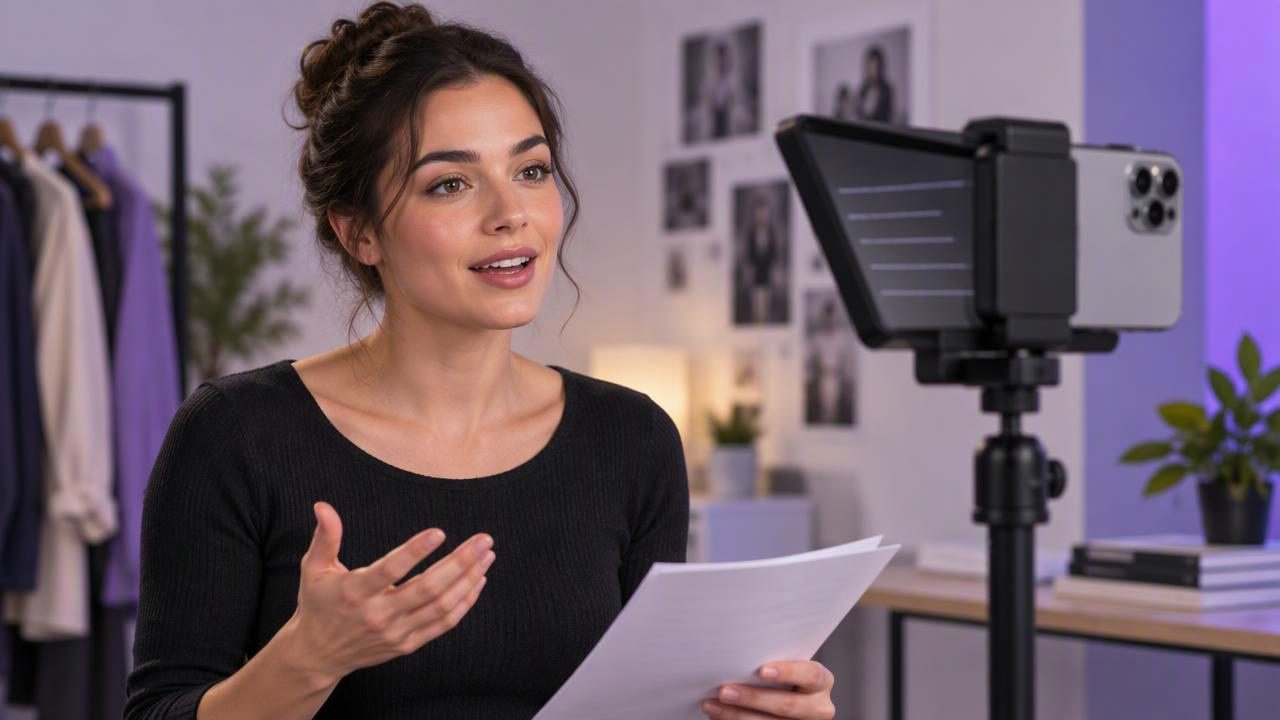
Put the phone at eye level and as close to the camera lens as your setup allows. A small gap between prompt and lens is generally less distracting than looking down at a phone on a desk. For a scene with an off-camera reader, place that reader—or the intended eye-line point—where the casting directions indicate. Do not move your eyeline toward the prompt if doing so contradicts the scene or the brief.
Record a brief test and review it at normal playback size. Look for repeated side-to-side eye movement, a lowered chin, or a visible pause while you find the next line. Adjust the placement, text size, or pace and test again. A teleprompter cannot make an eye line natural automatically; the setup and your rehearsal matter.
Make a short audio and framing test
Before a full take, record 15 to 20 seconds using the same room, phone position, and microphone arrangement you plan to use. Say a few lines at audition volume, pause, and continue. Listen back for room echo, background noise, clipping, and changes in volume. A recording indicator or an apparently connected microphone does not replace listening to the result.
Check that your face is well lit and that the frame follows the requested composition. A medium close-up is common for self-tapes, but the audition instructions take priority. Confirm whether the camera should be horizontal or vertical, whether a full-body shot is needed, and whether the background should be plain. Avoid making last-minute changes to resolution or orientation without checking the requested delivery requirements.
Keep the phone stable and make sure the prompt does not cover the camera or interfere with your setup. If you use external audio equipment, confirm that the recording is capturing the sound source you expect. Compatibility and behavior can vary by device and setup, so test the actual configuration rather than relying on a general assumption.
Self-tape teleprompter workflow at a glance
| Step | What to do | What to check |
|---|---|---|
| Read the brief | Note slate, framing, orientation, and memorization requirements. | Do not let app defaults override the instructions. |
| Format the sides | Separate speakers and break up long passages. | Dialogue remains accurate and complete. |
| Rehearse | Use scrolling to learn the sequence and practice difficult lines. | The pace supports natural speech. |
| Set the camera | Place the phone near eye level and choose the required frame. | Your eyeline suits the scene and stays consistent. |
| Test and review | Record a short sample and listen back. | Image, sound, and prompt behavior are acceptable. |
| Record the audition | Use the prompt only if the brief permits it. | Deliver the requested take and file setup. |
Understand the limits before choosing an app
Voice-following is not the same as a human reader. It may not respond as expected to silence, a whispered line, a change in pace, or a sentence that differs from the prepared text. Fixed-speed scrolling avoids reliance on voice tracking, but can feel rigid when a scene includes pauses or emotional shifts. Try the available modes with representative lines before recording anything important.
Also check the app’s device and language requirements. Features can depend on the phone, operating system, app settings, and supported languages. Do not assume subtitles or speech-related tools will work for every language or recording condition. Subtitles are generally a separate accessibility or editing task, not a substitute for meeting an audition’s audio and video instructions.
Finally, recording in a high resolution does not guarantee a better audition. Large files may be inconvenient, and the casting team may request a specific format or upload limit. Choose settings that match the brief and your device’s capabilities. Keep the performance clear and the delivery simple rather than adding effects or edits that were not requested.
Choose the tool that stays out of the performance
For audition preparation, the best self-tape teleprompter is a practical rehearsal aid: it lets you organize text, find a comfortable pace, and check a camera setup without encouraging you to ignore the casting instructions. Use a prompt to learn lines and refine timing; use a short test to assess eye line and sound; then decide whether it belongs in the final take.
If you want an iPhone workflow for reading while recording, CueCam’s guide to recording video while reading a script explains the setup considerations. Whatever tool you choose, let the audition brief—and the needs of the scene—determine how you record.
