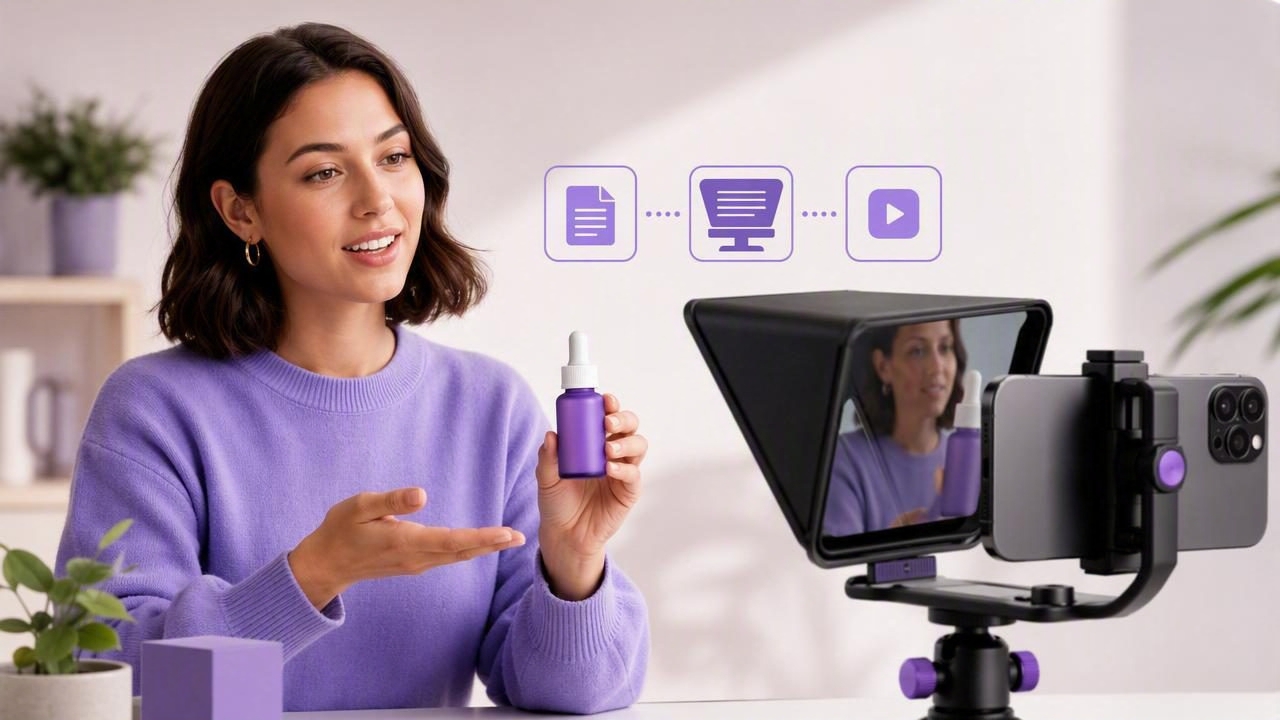
A polished product demo can make a new feature easier to understand, reduce support questions, and give potential customers a clearer reason to try your product. But recording one is often harder than it looks. You need to explain the problem, show the workflow, speak naturally, keep your eyes near the lens, and avoid losing your place halfway through a key sentence.
That is why many founders, marketers, educators, and creators look for the best iPhone teleprompter app to create a product demo. The right setup does more than display words on a screen. It supports a repeatable script-to-video workflow that helps you deliver concise explanations while recording usable footage on your iPhone.
This guide explains what to look for, how to prepare a demo script, and how to record a practical product walkthrough without sounding like you are reading.
What a Product Demo Needs From an iPhone Teleprompter
A product demo is different from a general talking-head video. The viewer is trying to answer specific questions: What does this do? Why should I care? How does it work? What should I do next? Your teleprompter workflow needs to support those answers without forcing you into a stiff, overly scripted delivery.
When evaluating an iPhone teleprompter, prioritize capabilities that help with the full recording process rather than script display alone:
- Camera-adjacent text: Your script should sit close enough to the camera that your gaze remains natural for a direct-to-camera introduction or conclusion.
- Flexible reading pace: Different sections need different speeds. A feature explanation may be slower than an opening hook, while a screen demonstration may require pauses.
- Voice-following or manual scrolling options: Voice tracking can be useful when your pace varies. Fixed-speed and timed scrolling can be useful when you have rehearsed a concise script.
- Reliable video recording controls: A demo may need high-resolution recording, stabilization, and support for an appropriate external audio setup, depending on your device and workflow.
- Simple editing and captioning: The ability to trim mistakes, resize a video, and add subtitles can make it easier to prepare versions for product pages, social channels, and help centers.
- Privacy-aware processing: Consider where scripts, recordings, and captions are stored, especially when your demo includes unreleased features or customer-sensitive information.
No teleprompter app can make an unclear product story compelling on its own. It can, however, remove the friction of remembering exact wording so you can focus on explaining the product with confidence.
Start With a Demo Goal, Not a Feature List
The most common product-demo mistake is trying to cover every feature. Viewers rarely need a complete inventory. They need a short path from a recognizable problem to a useful outcome.
Before writing your script, choose one primary audience and one job they want to complete. For example:
Audience: A small business owner who receives appointment requests through email.
Goal: Show how a booking tool turns an email request into a confirmed calendar slot in under a minute.
This focus gives you a reason to exclude unrelated settings, advanced reporting, and secondary integrations. A focused demo is usually easier to follow and easier to record in short, reusable segments.
A Simple Product Demo Structure
| Section | Purpose | Suggested Length |
|---|---|---|
| Hook | Name the viewer's problem or desired result. | 5–10 seconds |
| Context | Briefly explain what the product helps them do. | 10–15 seconds |
| Workflow | Show the essential steps in the right order. | 30–90 seconds |
| Outcome | Show the completed result and why it matters. | 10–20 seconds |
| Next step | Give one clear action, such as trying a feature or viewing documentation. | 5–10 seconds |
This framework works whether you are filming yourself using a physical product, recording a software walkthrough, or combining a presenter introduction with screen footage.
Write a Teleprompter Script That Sounds Conversational
Teleprompter scripts should be written for speech, not for a product page. Product-page copy can include dense claims, long sentences, and technical vocabulary. A demo script needs breathing room.
Use short sentences, one idea per line, and everyday words. Write transitions that tell the viewer where to look next: “First, choose the request,” “Now set the available time,” or “Here is what the customer sees.” These phrases make the narration easier to follow and give you natural places to pause.
Here is a short sample for the booking-tool example:
If appointment requests are getting buried in your inbox,
this is a faster way to confirm them.

Open the request and select a time slot.
Then add the customer's preferred service.

The confirmation is ready to send,
and the appointment appears on your calendar.

That means less back-and-forth
and a clearer next step for your customer.
The script does not explain every setting. It demonstrates one concrete result. If you need a longer video, add one workflow at a time rather than expanding every sentence.
Format Your Script for Easier Reading
- Break long paragraphs into lines of roughly 5 to 10 words.
- Use a blank line before a new visual action or screen change.
- Write numbers as you would say them aloud when clarity matters.
- Add simple stage directions in brackets, such as [show confirmation screen].
- Bold only the words that need extra emphasis; too much formatting becomes distracting.
- Remove filler phrases that do not move the demo forward.
Choose the Right Recording Format for the Demo
Your filming approach should match what viewers need to see. A direct-to-camera introduction builds trust, but a software product may require screen footage for the actual walkthrough. A physical product may need close-up shots instead.
For many demos, a hybrid format is effective:
- Record a short presenter-led hook with the teleprompter near the camera lens.
- Capture the product workflow separately, such as an app screen, browser view, or close-up product use.
- Record a presenter-led outcome and call to action.
- Combine the clips in editing, keeping the narration aligned with what appears on screen.
This approach means you do not have to read a detailed script while trying to tap through a complicated workflow on the same phone. It also lets you re-record a single segment when the interface changes, without remaking the entire demo.
Set Up Your iPhone Before You Press Record
A short setup check can prevent a disappointing take. Place the iPhone at eye level and position yourself far enough from the camera to avoid an unflattering wide-angle look. Keep the background simple so the product message stays central. If the demo includes a physical item, leave enough room for your hands and the product to enter the frame.
Lighting should make your face and product easy to see. Face a soft window or use a diffused front light when available. Avoid placing a bright window directly behind you, since this can turn your face into a silhouette.
Audio deserves the same attention. Record a short test before the full take. Speak at your normal demo pace, listen back with headphones if possible, and check for room echo, clothing noise, traffic, or handling sounds. If you use an external microphone, confirm it is selected and recording correctly before you begin. Device, accessory, and app behavior can vary, so a test clip is more dependable than assuming a setup will work.
Reading Pace and Camera Placement
Set the text large enough to read without squinting, but not so large that each line jumps abruptly. Start with a slightly slower scroll speed than feels necessary. When people get nervous, they often speak faster on camera.
Keep the script as close to the lens as your setup allows. Looking slightly below or beside the camera may be acceptable during a longer explanation, but an opening and closing line usually benefit from the closest possible eye line. If you catch yourself chasing text with your eyes, reduce the speed, shorten the line length, or divide the script into smaller sections.
Use Voice Tracking and Timed Scrolling Intentionally
Voice-following word tracking can be helpful when you want to pause naturally, stress a phrase, or repeat a line without manually controlling the scroll. It is especially practical for founder-led demos where the delivery should feel relaxed rather than tightly timed.
However, voice tracking may not suit every environment or language. Background noise, fast speech, unclear diction, device performance, and language support can affect tracking behavior. If it does not keep pace reliably in your test, switch to fixed-speed or timed scrolling and rehearse the segment. The best mode is the one that lets you speak clearly without drawing attention to the script.
Timed scrolling works well for a short, practiced introduction. Fixed-speed scrolling can work for a consistent voiceover. For a live-style demo with pauses while you show screens or objects, recording separate sections is often easier than trying to scroll through every action in one take.
Add Subtitles Without Losing the Product Context
Subtitles make a product demo easier to follow when viewers are watching without sound, are in a noisy environment, or prefer reading along. They can also reinforce product names, technical terms, and key outcomes.
Review automatically generated subtitles before publishing. Product names, acronyms, unusual feature labels, and industry terms may need corrections. Keep captions away from important buttons, pricing, diagrams, or product details. If a screen recording contains small text, avoid placing subtitles across the lower interface where viewers may need to tap or read.
Caption availability, language support, and accuracy can depend on the device, language, audio quality, and the feature being demonstrated. Build in time for a quick visual and text review rather than treating captions as a fully hands-off step.
Common Product Demo Problems and Practical Fixes
| Problem | Likely Cause | Practical Fix |
|---|---|---|
| The presenter sounds robotic | Script is too formal or scrolling is too fast | Use shorter sentences, lower the speed, and pause at section breaks. |
| Eyes move noticeably across the screen | Text is too far from the lens or lines are too wide | Move text closer to the camera area and reduce line length. |
| The demo feels too long | Too many features are included | Create separate demos for separate jobs or audiences. |
| Audio is inconsistent | No test recording or changing room conditions | Record a short test and keep your distance from the microphone consistent. |
| Captions cover important UI elements | Caption placement was not reviewed | Adjust placement or use shorter caption lines before export. |
A Repeatable Checklist for Better Product Demos
- Choose one viewer, one problem, and one desired outcome.
- Write a spoken script with short lines and clear transitions.
- Decide which sections need a presenter, screen capture, or close-up footage.
- Set the phone at eye level and test lighting before the full take.
- Run a short audio test with your intended microphone setup.
- Test teleprompter pacing before recording the final version.
- Record in sections so one mistake does not ruin the whole demo.
- Trim errors, review subtitles, and check that key product details remain visible.
- Export a version sized for the platform where viewers will watch it.
Make the Script Serve the Demo
The best iPhone teleprompter workflow is not about reading every word perfectly. It is about making the product easier to understand while keeping your delivery focused and human. Begin with one useful task, write for speech, test your pace and audio, and separate complex visual actions into manageable clips.
For an iPhone workflow that combines script reading and video recording, see this practical guide to recording video while reading a script with CueCam. Whichever setup you choose, rehearse with the real script and the real environment before recording the final product demo.
