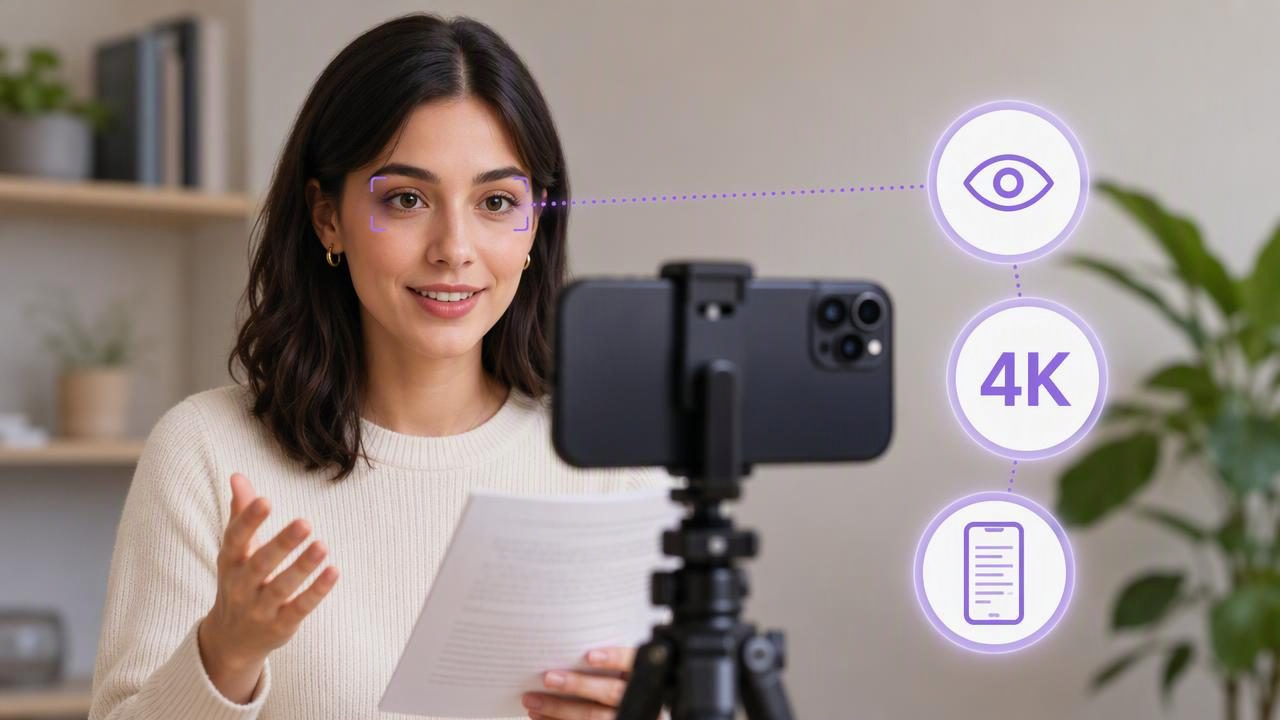
Finding the best 4K recording app to maintain natural eye contact is not only about resolution. A sharp video can still feel distant or unconvincing when the presenter repeatedly looks below, beside, or away from the camera. For creators making product explainers, social videos, training clips, sales outreach, or educational content, eye contact is a major part of making a scripted video feel personal.
The practical challenge is simple: you need to read key lines without appearing to read them. An iPhone teleprompter and video recording workflow can help by placing your script close to the front camera, while 4K recording preserves useful visual detail for editing, cropping, and publishing.
This guide explains what to evaluate in an iPhone video recording app, how teleprompter placement affects natural delivery, and how to set up a repeatable script-to-video process without sacrificing audio, framing, or privacy.
Why Natural Eye Contact Matters in 4K Video
Higher-resolution video makes small visual details easier to notice. In 4K footage, viewers may see frequent downward glances, delayed reactions, or eye movements between lines more clearly than in a lower-resolution recording. That does not mean every video must look perfectly rehearsed. It means your setup should support a focused, believable delivery.
Natural eye contact helps viewers feel that you are speaking to them rather than reading at them. This matters especially when your video asks someone to learn, decide, trust, subscribe, buy, or take another next step.
- Product demonstrations: Clear eye contact can make explanations feel more confident and direct.
- Educational videos: Learners can stay engaged when the presenter looks present and attentive.
- Social media clips: A direct-to-camera style can make short-form content feel more conversational.
- Sales and customer videos: Eye contact can create a more personal tone than a generic screen recording.
However, eye contact is only one part of quality. A strong video also needs understandable audio, appropriate lighting, a concise script, and a pace that sounds like a person speaking rather than reciting.
What Makes a 4K Recording App Useful for Scripted Video?
When comparing recording apps, look beyond a list of camera specifications. The best option for your workflow should make it easier to prepare, record, review, and publish without forcing you to move between too many tools.
| Feature to Evaluate | Why It Matters | What to Check |
|---|---|---|
| 4K recording support | Provides detail for high-quality delivery and flexible crops. | Confirm that your iPhone model, available storage, and selected camera support the chosen resolution and frame rate. |
| Script proximity | Helps reduce visible off-camera reading. | Look for a teleprompter layout that keeps text close to the camera lens. |
| Scrolling control | Supports a more comfortable speaking pace. | Consider fixed-speed, timed, or voice-following options where available. |
| Audio input support | Clear speech often matters more than extra visual detail. | Run a short test with the microphone setup you plan to use. |
| Editing tools | Reduces the time required to clean up a recording. | Check whether you can trim clips, resize for platforms, or make basic adjustments. |
| Caption creation | Improves accessibility and helps viewers follow muted video. | Review language availability, accuracy, and whether caption generation has device requirements. |
| Privacy approach | May matter for confidential scripts or unreleased content. | Understand where scripts, recordings, and subtitle processing take place. |
Prioritize Script Placement, Not Just Scrolling
A teleprompter’s biggest benefit is not simply that it scrolls text. Its value comes from allowing you to see words while keeping your gaze near the lens. If the script sits too low on the screen, your audience may still notice that you are reading.
For a front-camera recording, place the iPhone at approximately eye level and avoid holding it too far below your face. If you are using a tripod, raise or lower it until the lens aligns naturally with your line of sight. Then position the script as close as the app allows to the camera area.
Keep the text readable without making it oversized. Very large text can force your eyes to travel noticeably from side to side. Very small text can make you squint or lean forward. Start with a comfortable font size, then record a 15-second test and watch it with the sound off. The silent review makes eye movement easier to spot.
Use Short Script Lines for More Believable Delivery
The way a script is formatted can be as important as the app itself. Dense paragraphs encourage long reading glances, while short phrases make it easier to look at the lens between thoughts.
Instead of writing this:
Our new service helps small businesses streamline their content production process by bringing planning, video creation, captions, and publishing preparation into a more manageable workflow.
Format the same idea like this:
Creating content takes time.
Especially when your workflow is scattered.
Start with one clear message.
Then turn that message into a video your audience can follow.
Each line becomes a natural speaking unit. You can glance at the next idea, deliver it to camera, pause, and continue. The result usually feels less like a formal speech and more like a conversation.
Choose a Scrolling Method That Matches Your Speaking Style
Different presenters need different forms of control. A fixed scroll speed may work well when you have rehearsed your script and speak consistently. A timed scroll can be useful when a video must fit a specific duration. Voice-following text can be helpful when you prefer a more flexible pace and may pause, repeat a phrase, or emphasize a point.
There is no universally best mode. The right choice depends on how stable your delivery is and how familiar you are with the material.
- Fixed speed: Useful for short, well-rehearsed scripts with a predictable rhythm.
- Timed scrolling: Useful when planning content around a fixed runtime, such as a 30-second social clip.
- Voice-following: Useful for speakers who want the text to respond more naturally to their pace.
Voice tracking and caption features can have device, language, and environmental limitations. Background noise, unclear pronunciation, rapid speech, accents, and unsupported languages may affect results. Always review the text position and any generated captions before publishing.
A Practical 4K Script-to-Video Setup Example
Imagine you are recording a 60-second 4K video introducing a new online course. Your goal is to sound clear and approachable without memorizing every line.
- Write a 130- to 150-word script. This gives most speakers enough room for a roughly one-minute delivery, depending on pace and pauses.
- Break the script into one-sentence or one-idea lines. Add a blank line after important points where you want to pause.
- Set the iPhone at eye level. Use stable support rather than holding the phone if possible, since movement can make the footage harder to watch.
- Frame the shot before opening the script. Leave a little space above your head and make sure your face has even light.
- Record a 10-second audio test. Say a few normal sentences at your real delivery volume. Listen for room echo, wind, handling noise, or clipping.
- Start with a moderate scroll pace. Do not try to match a fast scroll. Adjust the setting to your natural speech instead.
- Review the first take. Check for eye movement, framing, audio clarity, and whether the 4K file is recording as expected.
If your eyes appear to move too much, shorten lines and reduce the amount of text visible at once. If you sound rushed, slow the prompt down rather than forcing yourself to speak faster. If the 4K video feels too dark, improve the lighting before changing camera settings.
Do Not Overlook Audio and Storage Limits
4K recording can create large files, especially at higher frame rates. Before a longer recording session, verify that your iPhone has enough available storage. Consider recording a short sample at your intended settings to understand file size, heat, battery use, and recording stability on your device.
Also remember that 4K does not repair poor audio. A quiet room, a controlled speaking distance, and a brief test recording can make a larger difference than resolution alone. If you use an external microphone, test the complete setup before recording your final take. Specific compatibility and behavior can vary by device, connector, app settings, and microphone model.
Add Captions Without Letting Them Replace Clear Speech
Subtitles make video easier to follow in sound-off environments and can support viewers who prefer to read along. They are especially useful for short social videos, instructional clips, and content viewed in noisy spaces.
Still, captions should complement—not compensate for—unclear delivery. Speak at a moderate pace, avoid burying key points in long sentences, and leave small pauses between ideas. Review subtitle timing, names, technical terms, and punctuation before exporting. Automated captions can mishear words, particularly when audio is noisy or language support is limited.
How to Make Your Final Choice
The best 4K recording app to maintain natural eye contact is the one that fits your real filming habits. It should help you keep a script near the lens, control the reading pace, record at settings your iPhone can support, and review the result efficiently.
Before committing to a workflow, test it with one short video. Use the same room, lighting, speaking style, and publishing format you expect to use later. Then assess four things: do your eyes look natural, is your voice clear, is the video properly framed, and can you repeat the process without friction?
For iPhone creators who want a practical walkthrough of recording while reading a script, CueCam’s guide to recording video while reading a script provides a useful starting point for building that workflow.
