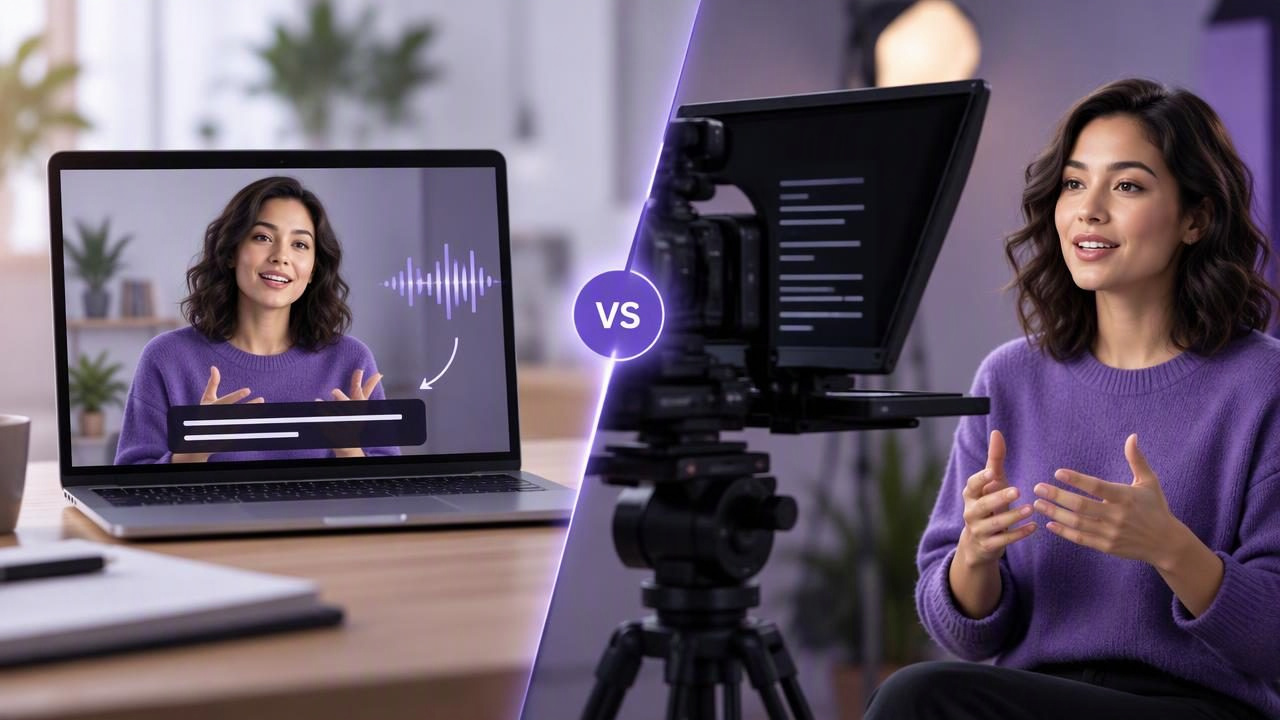
An automatic caption tool and a hardware teleprompter can both help you make a video easier to follow, but they solve different problems. Captions show viewers what was said. A teleprompter helps you deliver prepared words while looking toward the camera. One supports the audience during playback; the other supports the speaker during recording.
That distinction matters when you are choosing equipment or planning a creator workflow. If your main challenge is remembering lines, captions will not help you read them while filming. If viewers need text to follow dialogue, a teleprompter will not add subtitles to the finished video. Some projects benefit from both, but you do not need both for every recording.
Here is how to compare the tools, decide which one fits your task, and combine them without making your video process unnecessarily complicated.
What does each tool do?
Automatic caption tools add text for viewers
An automatic caption tool analyzes recorded speech and produces on-screen text. Depending on the tool, you may be able to review and correct the transcript, adjust its appearance, and export the captions as part of the video or as a separate file. The core purpose is accessibility and comprehension: captions let people read along, help in sound-off settings, and make spoken information easier to revisit.
Automatic captions are not a guarantee of a perfect transcript. Names, technical terms, accents, background noise, overlapping voices, and fast delivery can all affect recognition. Always check the text against the recording before publishing, especially when accuracy matters. Also confirm which languages and export options the particular tool supports. Those capabilities vary.
Hardware teleprompters help you read while recording
A hardware teleprompter places script text in front of the camera lens using a reflective pane and a display. You read the reflection while the camera records through the glass. When it is positioned and set up well, your gaze can stay close to the lens instead of moving down to notes or across to a separate screen.
The device does not create captions or confirm what you said. It displays the words you prepared. You are still responsible for reading them naturally, keeping your pace steady, and recording usable audio and video. Setup can involve positioning the camera, mounting the teleprompter, loading the script on its display, and adjusting the text for comfortable reading.
Automatic caption tool vs hardware teleprompter: key differences
| Question | Automatic caption tool | Hardware teleprompter |
|---|---|---|
| When does it help? | During editing or playback, depending on the tool | While you deliver a script on camera |
| Who benefits most? | Viewers who want or need on-screen text | Speakers who want to follow prepared wording |
| What does it work from? | Speech in a recording or supported live source | A script displayed for the speaker |
| What should you check? | Transcription accuracy, language, and output format | Camera alignment, reading pace, and setup |
| What can it not do by itself? | Help you remember lines during filming | Transcribe or caption the finished video |
They are not direct substitutes. A captioning feature cannot replace a script reader, and a script reader cannot make a video accessible through subtitles. Choose according to the problem you need to solve, rather than comparing them as if they perform the same job.
Which one should you choose?
Choose an automatic caption tool when the words need to appear in the video
Captions are the priority if viewers may watch without sound, if you want dialogue visible on screen, or if spoken instructions are easier to understand when people can read them. This can be especially useful for short social videos, explainers, interviews, and tutorials. A readable caption track also gives viewers another way to follow information when the audio is difficult to hear.
Think about the final viewing experience. Are captions meant to appear throughout the video? Do you need to correct the wording or control where line breaks appear? Will you need a separate caption file, or should the text be part of the image? Answering these questions helps you choose a caption workflow that suits your publishing needs. Do not assume every tool supports the same languages or export formats.
Choose a hardware teleprompter when delivery is the challenge
A teleprompter is useful when you need to deliver exact wording, record a longer introduction, or reduce the number of times you stop to check notes. It can also help keep your eyes nearer the lens than a script placed beside the camera. It will not automatically make a delivery sound conversational, though. If you read without pauses or expression, the result can still feel stiff.
Hardware makes sense when you want a dedicated physical setup and have a suitable place to mount and position it. Consider your camera, lens, shooting space, and how often you will assemble the equipment. A teleprompter also adds a setup step, so it may be more than you need for a quick, casual clip.
Use both when the recording and viewing problems are separate
For a scripted video with exact lines and a sound-off audience, using a teleprompter while filming and adding reviewed captions afterward can address both needs. The teleprompter helps you present the material; captions help viewers follow it. Neither step removes the need to review the other: read through the script before recording, then check the generated captions against the final audio.
A practical example: filming a short product tutorial
Imagine you are recording a 60-second tutorial about changing a setting in an app. The script includes the exact name of the setting, three steps, and a brief closing instruction. You want to avoid looking down at notes, and some viewers may watch with their phone muted.
- Prepare the script. Write short, speakable sentences. Put each step on its own line and spell product names consistently. Keep the script beside the recording setup so you can check details before filming.
- Set up the teleprompter or script display. With hardware, align the camera and reflective pane, then load the script. With an iPhone teleprompter app, position the text close to the camera view. In either case, adjust the text size and scrolling speed so you can read without rushing.
- Check your delivery. Read the first few lines at your intended pace. Look for awkward wording, long sentences, or a scroll speed that makes you hurry. A short test can reveal these issues before you record the full take.
- Make a brief audio test. Record a few seconds using the microphone and room you plan to use. Listen back for clear speech, distracting noise, or an audio level that is hard to hear. A teleprompter does not fix sound problems.
- Record the tutorial. Pause naturally between steps and leave a little space before and after the spoken sections. If you make a mistake, stop, take a breath, and restart the sentence rather than trying to rescue a rushed delivery.
- Generate and review captions. Check names, numbers, punctuation, and the three steps against the finished recording. Correct errors before exporting. If the captions appear in the picture, preview them on a phone-sized screen to make sure they are readable and do not cover important actions.
This example uses each tool for its own job. The teleprompter supports the on-camera performance; the caption tool supports the audience. If the video does not need scripted delivery, skip the prompt. If captions are unnecessary for the intended format, do not add them just because a caption feature is available.
What to consider before buying or choosing an app
- Camera placement: With a hardware unit, check that the camera and lens can be positioned as required. With an iPhone script reader, keep the text near the camera so reading does not create an obvious sideways glance.
- Reading control: Decide whether you prefer to advance text manually, follow a fixed pace, or use a supported voice-following mode. Check the specific device and app requirements; tracking behavior can vary.
- Caption review: Automatic transcription saves typing, but it still needs human proofreading. Test the language and vocabulary relevant to your video rather than assuming every transcript will be accurate.
- Recording workflow: Consider whether you want to record and edit in separate steps or keep script reading, recording, and captions within one workflow. A combined workflow can reduce handoffs, but it does not remove the need to check the final result.
- Privacy: Find out where scripts, recordings, and caption processing take place. Some tools process content on the device, while others may rely on online services. Read the tool’s privacy information and choose according to your requirements.
- Final format: Check how the finished video will be used and whether captions need to be burned into the image or saved separately. Do not count on an export option until you have confirmed that the tool offers it.
Can an iPhone app replace a hardware teleprompter?
For many individual creators, an iPhone teleprompter app can be a practical alternative when the phone is also the camera or when a compact recording setup is preferable. It avoids the need to position a separate reflective pane, although you still need to place the text where you can read it comfortably while facing the camera. Whether that trade-off works depends on your framing, device arrangement, and recording style.
A dedicated hardware setup may suit someone who regularly records with a separate camera and wants the script reflected in front of its lens. An app may suit a creator filming directly on a phone. Neither option automatically guarantees natural eye contact: camera placement, text distance, script length, and practice still matter.
Make the choice based on the bottleneck
If your main obstacle is forgetting lines, start with a teleprompter. If your audience needs visible text, start with captions. If both are true, use each tool at the appropriate stage and review both the performance and the transcript. For an iPhone-based approach to reading and recording, see this guide to recording video while reading a script.
The simplest reliable workflow is the one that addresses a real need without adding unnecessary steps. Prepare a script you can say aloud, place the words near the lens, test your pace and audio, then review captions for accuracy if you use them. That keeps the comparison practical: one tool helps you speak; the other helps viewers read.
