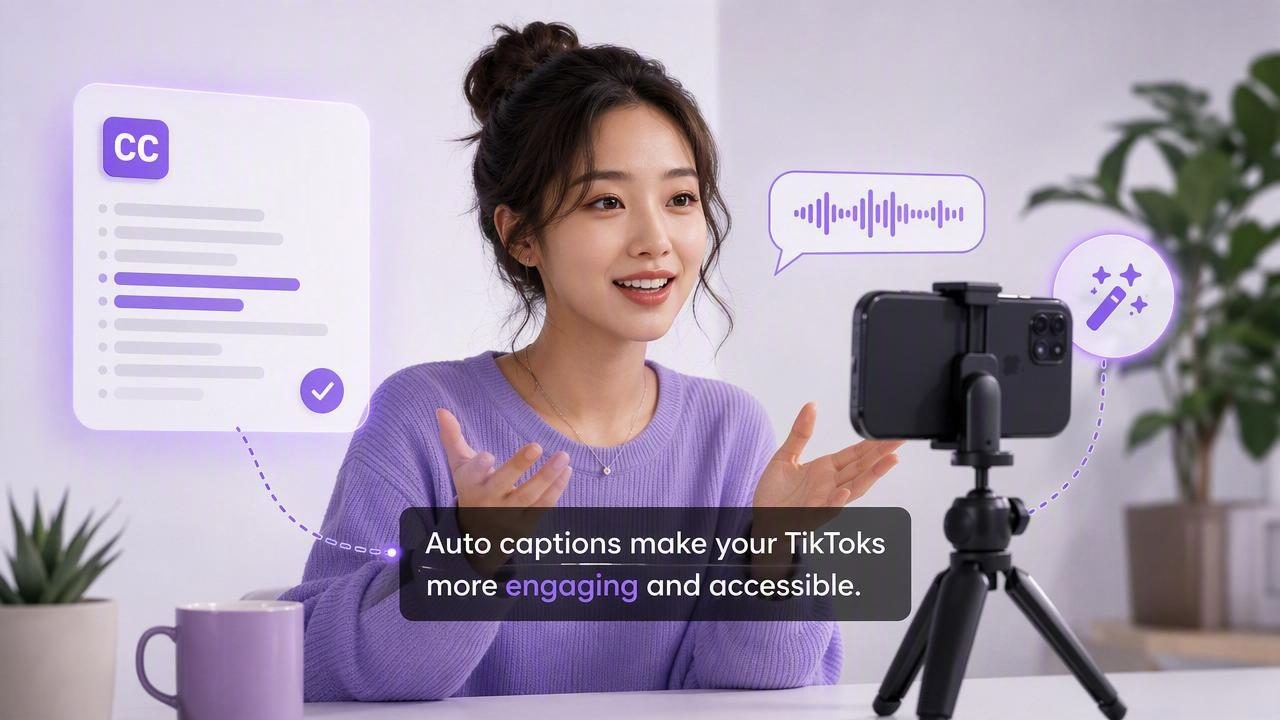
An automatic caption tool for TikTok creators can turn a spoken video into a more accessible, watchable, and reusable post in minutes. Captions help viewers follow a video when their sound is off, clarify fast-paced delivery, and make content easier to understand for people who are deaf, hard of hearing, or watching in a noisy environment.
But automatic captions are not simply a button to press at the end of editing. The best results come from a repeatable script-to-video workflow: write clearly, record clean audio, generate accurate subtitles, review the text, and format captions for a vertical screen. This guide explains how to build that process on an iPhone while protecting video quality and keeping your content easy to publish.
Why TikTok Creators Need Automatic Captions
TikTok is designed for fast, mobile-first viewing. Many people scroll through videos in public places, at work, during a commute, or late at night. In those situations, they may not enable audio immediately. Captions give the viewer context before they decide whether to keep watching.
For creators, subtitles also support clearer communication. They reinforce key phrases, names, product details, numbers, and calls to action. When a video includes a quick tutorial, a talking-head explanation, or a story with several steps, readable text can reduce confusion and improve the viewing experience.
- Accessibility: Captions make spoken content more inclusive.
- Retention: Viewers can follow the message even when audio is unavailable.
- Clarity: Text helps emphasize terminology, instructions, and important details.
- Reuse: Captioned clips are easier to repurpose for Reels, Shorts, and other vertical platforms.
- Consistency: A repeatable caption style can strengthen your visual identity.
Captions do not automatically guarantee more views. A weak opening, unclear topic, or slow pacing can still cause viewers to swipe away. However, accurate subtitles remove a common barrier between your message and the audience.
What to Look for in an Automatic Caption Tool
Not every auto-caption feature is built for the same workflow. Some tools are designed for desktop editing, while others are optimized for quick mobile production. If you record and publish mostly from an iPhone, look beyond basic transcription.
| Feature | Why It Matters for TikTok |
|---|---|
| Accurate speech recognition | Reduces time spent correcting names, jargon, and punctuation. |
| Word-level timing | Keeps captions in sync with your delivery and improves readability. |
| Caption styling controls | Lets you adjust font size, color, placement, and emphasis for vertical video. |
| On-device processing | Can support a more private workflow and reduce dependence on uploads. |
| High-quality export | Preserves detail when publishing video recorded in HD or 4K. |
| Language support | Helps creators serve multilingual audiences or caption different spoken languages. |
For many solo creators, the ideal automatic caption tool is one that fits naturally into the creation process rather than adding another upload, download, or desktop transfer step.
Start With a Script That Captions Well
Better captions begin before recording. Automatic transcription systems perform best when speech is clear, paced naturally, and supported by clean audio. A script also makes it easier to avoid rambling, filler words, and repeated points.
Write for the ear, not for a formal article. Use short sentences, direct language, and one clear idea per section. If your video is 30 seconds long, focus on one problem and one useful takeaway. If it is longer, organize it into visible beats.
A Simple TikTok Script Structure
- Hook: State a relatable problem, surprising fact, or direct benefit in the first few seconds.
- Context: Explain who the advice is for or why the topic matters.
- Value: Deliver two to four concise tips, steps, or examples.
- Close: End with a memorable summary or a relevant next action.
For example, instead of saying, “Today I wanted to talk about a few things I have learned over time about making captions,” say, “Your TikTok captions may be hurting retention. Fix these three things.” The second version is easier to understand, easier to caption, and more immediately useful.
Record Clean Audio Before Generating Subtitles
An automatic caption tool can only work with the audio it receives. Poor audio creates transcription errors, and fixing those errors manually can take longer than recording the clip again. Prioritize sound quality before worrying about animated caption effects.
- Record in a quiet room away from fans, traffic, and echoes.
- Position your iPhone or microphone close enough for a clear voice signal.
- Use an external microphone when possible, especially for educational or client-facing content.
- Speak at a steady pace and pause briefly between major ideas.
- Say brand names, technical terms, and numbers clearly.
- Review a short test clip before recording a longer take.
If you read from a script, an iPhone teleprompter can help you maintain eye contact with the camera while staying on message. This is especially helpful for tutorials, product explainers, course lessons, and recurring content series where consistency matters.
Generate Captions, Then Always Review Them
Automatic subtitles save time, but they are not a substitute for a final review. Even strong transcription can mishear proper names, acronyms, regional terms, or words spoken quickly. Check captions before exporting, particularly when the video contains advice, pricing, instructions, or a call to action.
Caption Review Checklist
- Correct names, brands, places, and technical vocabulary.
- Confirm numbers, dates, measurements, and links are accurate.
- Remove distracting filler words if they do not add meaning.
- Break long lines into shorter, readable phrases.
- Check that captions appear at the same time as the spoken words.
- Make sure no captions cover your face, important visuals, or TikTok interface areas.
A useful rule is to caption ideas rather than force every sentence into one long block. If you say, “Here are three ways to make your videos easier to watch,” split that thought into visually digestible segments. Viewers should be able to read each caption without pausing the video.
Captioning principle: If viewers need to reread the text to understand it, the caption is probably too long, too small, or on screen for too little time.
Format Captions for a Vertical TikTok Screen
TikTok uses a 9:16 vertical layout, so composition matters. A subtitle style that looks good in a wide desktop preview can become cramped on a phone. Caption placement should support the video, not compete with it.
Keep text away from the lower portion of the screen where captions, descriptions, buttons, and navigation elements may appear. If your face is centered low in the frame, move subtitles higher. If you are demonstrating an app or showing a product, position captions where they will not block the essential action.
Readable Caption Styling Tips
- Choose a bold, high-contrast font that remains legible on small screens.
- Use two lines or fewer whenever possible.
- Add a background, outline, or shadow when the video background is busy.
- Use emphasis sparingly for keywords, not every word.
- Keep your font, color palette, and placement consistent across a series.
Animated, word-by-word captions can be engaging, but they are not appropriate for every video. For a calm educational explainer, stable captions may be easier to follow. For fast commentary, selective word emphasis can add energy. Choose a style that matches the pacing and purpose of the content.
Protect Privacy in Your Caption Workflow
When selecting an automatic caption tool for TikTok creators, consider where your audio and video are processed. Cloud-based services may require you to upload footage to external servers before captions are generated. That may be acceptable for some workflows, but it is worth understanding the trade-off.
For private client videos, unreleased product content, personal stories, or sensitive educational material, on-device subtitle generation can be a practical option. Processing captions directly on your phone can reduce unnecessary file transfers and give you more control over your source media.
Review the app’s privacy information before importing footage. Look for clear answers about whether content is uploaded, how long files are stored, whether an account is required, and what happens when you delete a project.
Export Without Losing Quality
Caption quality is only one part of the final result. Blurry footage, poor framing, or heavily compressed exports can make a polished video feel less professional. Start with a vertical project, then export at a resolution and frame rate appropriate for the source recording.
If you filmed in 4K, you may choose to edit and export at 1080p for a smaller file and faster upload, or retain a higher resolution when your workflow and platform support it. Avoid repeatedly exporting the same video through multiple apps, because each re-encode can reduce visual quality.
- Use a 9:16 vertical canvas.
- Check the final video on your phone before posting.
- Watch once with sound and once muted.
- Verify that subtitles remain inside safe visual areas.
- Keep a clean master copy if you plan to reuse the clip elsewhere.
Build a Faster Repeatable Caption Process
The most sustainable workflow is simple enough to repeat several times each week. Create a script template, save a preferred caption style, record in the same reliable setup, and use a final export checklist. This reduces decision fatigue and makes your content look more consistent over time.
A mobile app that combines teleprompter support, 4K recording, editing, and on-device subtitles can streamline that process. For example, CueCam offers a privacy-focused iPhone workflow for creators who want to move from script to captioned video without unnecessary transfers between tools.
Ultimately, the best automatic caption tool is the one that helps you publish clear, accurate, accessible videos consistently. Focus first on a useful message and clean audio. Then use captions to make that message easier for more people to watch, understand, and remember.
