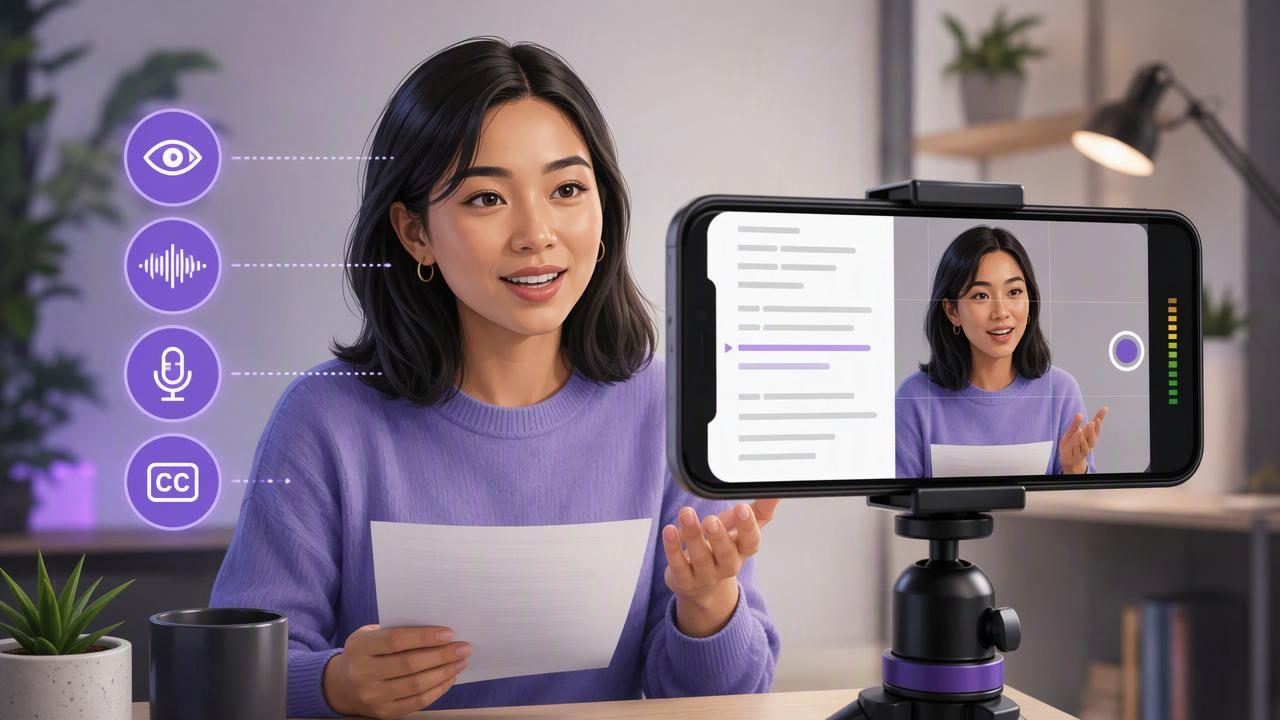
Using an app to read scripts and record video can make scripted content easier to create without the pressure of memorizing every sentence. Whether you are recording a product explanation, client update, course lesson, social post, or interview introduction, a teleprompter-style workflow helps you stay focused on the message while looking toward the camera.
The goal is not to sound as though you are reading. The goal is to make your script easy to deliver: conversational, paced correctly, and supported by a setup that keeps the words close to the lens. A good result depends on more than switching on scrolling text. Script preparation, camera placement, reading speed, framing, and a short audio test all matter.
This guide explains a practical iPhone workflow for recording video while reading a script, including a concrete example you can adapt to your own content.
Why read a script while recording video?
A script gives you control over the points that must be communicated. This is useful when accuracy matters, such as explaining pricing, outlining a process, delivering a company announcement, or describing a product feature. It also reduces retakes caused by forgotten details or a rambling introduction.
Reading from a script does not mean every word has to be followed exactly. Think of the script as a guide that keeps your structure intact. You can still pause, smile, use natural emphasis, and rephrase a sentence if it sounds better aloud.
- More consistent messaging: Important details are less likely to be missed.
- Faster recording sessions: You spend less time restarting after losing your place.
- Clearer delivery: A structured beginning, middle, and ending are easier for viewers to follow.
- Reusable content: A solid script can be adapted for vertical clips, presentations, and longer videos.
Start with a script written for speaking, not reading
The biggest teleprompter mistake happens before recording: using writing meant for a webpage, report, or slide deck. Written language often has longer sentences and more formal transitions than spoken language. When read aloud, it can sound stiff and make you rush to keep up.
Rewrite the script as if you were explaining the topic to one person. Use short paragraphs, plain words, and clear pauses. Put the most important point near the beginning, especially for short-form video where viewers decide quickly whether to continue watching.
A simple spoken-script format
| Section | Purpose | Example |
|---|---|---|
| Hook | Give viewers a reason to keep watching. | “If you keep restarting videos because you forget your next point, try this workflow.” |
| Problem | Name the frustration or question. | “Memorizing a full script can make recording slower than it needs to be.” |
| Solution | Explain the main idea in steps. | “Keep the script near the lens, set a comfortable pace, and record in short sections.” |
| Next step | Close with a specific action or takeaway. | “Use this setup for your next 30-second explanation.” |
Before you record, read the complete script aloud once. Mark words that feel awkward, difficult to pronounce, or too dense. If you run out of breath in a sentence, split it. If a phrase sounds unlike something you would normally say, replace it.
Set up the iPhone for natural eye contact
For direct-to-camera videos, place the script text as close to the front camera lens as your recording setup allows. The farther your eyes move away from the lens, the more noticeable it can be that you are reading. Small eye movements are normal; repeated side-to-side movement is more distracting.
Position the iPhone at approximately eye level. A camera placed too low can emphasize the ceiling and create an unflattering angle, while a camera placed too high may make the delivery feel less direct. Use a stable support rather than holding the phone whenever possible. Stability helps you maintain framing and frees your hands for natural gestures.
Choose your orientation before recording:
- Vertical: Often suitable for short social posts, Stories, Reels, and mobile-first viewing.
- Horizontal: Often useful for longer tutorials, website video, presentations, and standard video platforms.
- Square or custom framing: Can be useful when you know the intended channel requires it.
Leave enough space above your head, avoid a cluttered background, and face a window or soft light source when possible. Avoid placing a bright window directly behind you unless you deliberately want a silhouette.
Choose the right script scrolling mode
Most teleprompter-style recording workflows use either fixed-speed scrolling, timed scrolling, or voice-following tracking. The best choice depends on how consistently you speak and how polished the script is.
- Fixed speed: Useful when you have rehearsed and can maintain a steady pace. Start slower than you think you need; speeding up is easier than chasing text that has moved ahead.
- Timed scrolling: Useful when you need a video to fit a planned duration. It works best when the script has been read aloud and edited to match that timing.
- Voice-following tracking: Helpful when your pace changes naturally or you pause to add emphasis. Depending on the device, app version, language, audio conditions, and speech clarity, tracking may perform differently, so it is sensible to test it before a final take.
Use a readable text size. Larger text can reduce eye movement but may require more frequent scrolling. Smaller text lets more words fit on screen but can make your gaze shift farther across each line. Aim for a balance that lets you glance at phrases rather than scan entire paragraphs.
A concrete example: recording a 45-second product explanation
Imagine you need to record a 45-second video explaining a new feature to customers. Instead of writing one long paragraph, break it into four short sections with visible pauses:
Hook: “Want a faster way to find unfinished tasks?”
Context: “The new filter groups open items in one view, so you can see what needs attention first.”
How it works: “Open the task list, choose the status filter, then select unfinished. You can narrow the view further by owner or due date.”
Close: “Try it before your next planning session and save the view you use most.”
Set the text to a comfortable size, position the phone at eye level, and do a rehearsal without recording. During that rehearsal, listen for rushed phrases. For example, “You can narrow the view further by owner or due date” may need a small pause after “further.” Add a line break there in the script.
Record two or three takes rather than trying to make the first take perfect. In the first take, focus on timing. In the second, focus on warmth and eye contact. In the third, try a slightly slower delivery if the message feels rushed. This gives you choices without turning a short video into an exhausting session.
Do a 15-second audio test before the full take
Clear audio matters as much as sharp video. Before recording the full script, capture a short test at the same distance and in the same room. Say a few lines at your normal volume, then listen back with headphones if available.
Check for these common issues:
- Air conditioning, traffic, fans, or computer noise in the background.
- Echo from an empty room with hard walls and floors.
- Clothing, jewelry, or hand movement creating unwanted sound.
- Speech that is too quiet, clipped, or inconsistent.
If you use an external microphone, confirm that the recording app recognizes the intended input before the main take. Compatibility and available controls can vary by iPhone model, connection method, operating system, and app, so a quick test is more reliable than assuming a setup will behave the same way every time.
Record in sections when the script is longer
For a one-minute or longer video, record in logical sections instead of forcing yourself through a flawless full-length take. Stop after a completed idea, take a breath, and begin the next section. This approach reduces fatigue and makes it easier to replace one weak section later.
Keep your body position, lighting, and camera framing consistent between sections. If you change your chair height or move the phone, cuts may look more obvious. Leave a second of silence before and after each section to give yourself room for trimming.
A useful approach is to record:
- The opening twice, because it sets the energy for the entire video.
- Each main point as a separate section.
- The closing twice, including one version with a calmer pace.
Add captions carefully after recording
Captions make video easier to follow when viewers are in a noisy place, watching without sound, or processing information in a second language. They can also reinforce names, numbers, steps, and technical terms that viewers may otherwise miss.
Automatic captions are a starting point, not a final proofread. Review names, acronyms, product terminology, numbers, and punctuation. A missing word can change meaning, while inaccurate timing can make a polished recording feel less professional.
On-device caption generation and supported languages can vary based on the iPhone, operating system, app capabilities, and language used in the recording. If privacy is important, check where transcription is processed and stored before using any caption tool. Keep captions high enough to avoid platform interface buttons, but not so high that they cover your face.
Final checklist for scripted iPhone videos
- Write for speech using short sentences and natural pauses.
- Place the script close to the camera lens.
- Set the iPhone at eye level and stabilize it.
- Choose vertical or horizontal framing before recording.
- Test scrolling speed or voice-following behavior with your actual script.
- Record a short audio test in the same environment.
- Capture multiple takes or sections instead of chasing perfection.
- Review captions for accuracy before publishing.
Build a repeatable script-to-video process
The best app to read scripts and record video is only one part of a repeatable creator workflow. Your results improve when you create a script template, rehearse aloud, use consistent camera placement, and save a few minutes for audio and caption review. These habits make video creation more predictable while leaving room for personality.
For a product-specific walkthrough of this workflow on iPhone, see the CueCam guide to recording video while reading a script.
