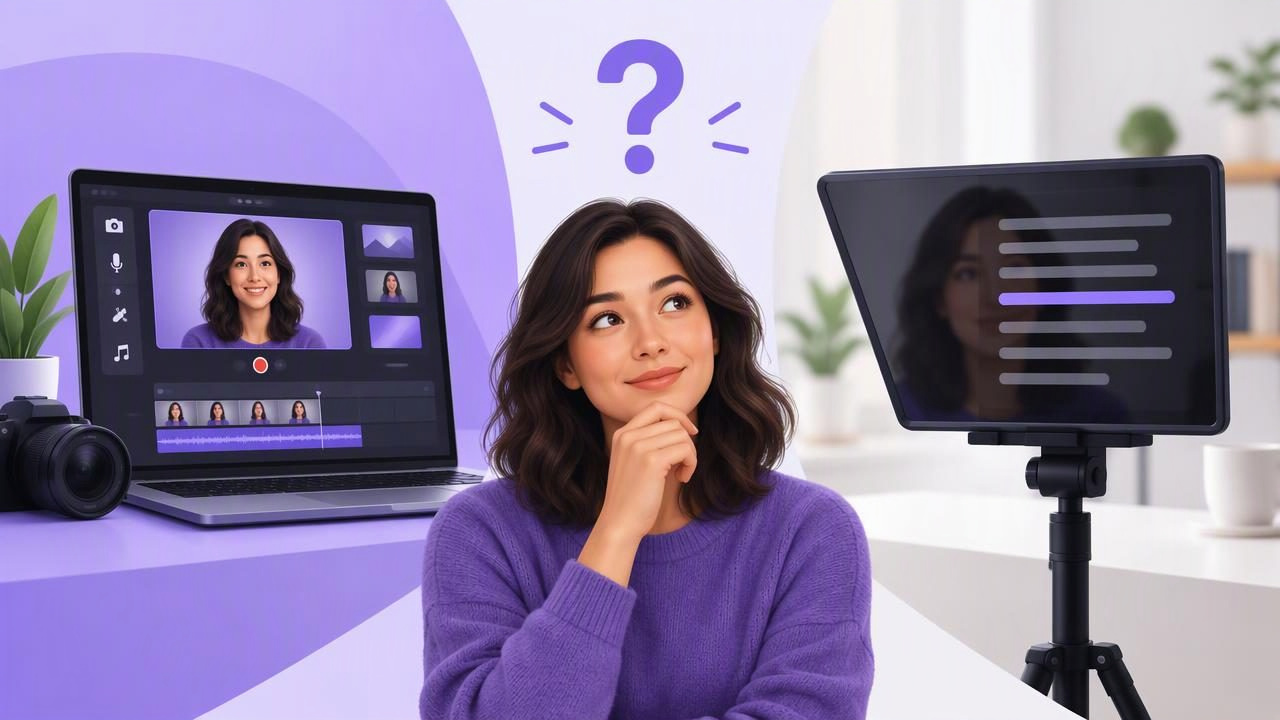
If you want to record a video without memorizing every line, you can use an online teleprompter or an all-in-one video app. Both can help you follow a script, but they fit different recording workflows. An online teleprompter usually focuses on displaying text. An all-in-one video app may combine a script reader with recording and editing tools, depending on the app.
The right choice comes down to what happens after you start reading. If you already have a separate camera and editing process, a browser-based prompter may be enough. If you want to read, record, and make basic adjustments on your phone, a combined app can reduce handoffs. Neither option automatically guarantees natural delivery, good audio, or a finished video; those still depend on your setup and practice.
What is the difference?
An online teleprompter runs in a web browser and displays a script that scrolls while you speak or record separately. Depending on the service, you may be able to adjust text size and scrolling speed. You then use another camera or recording app to capture the video, unless the service offers recording as well.
An all-in-one video app brings multiple parts of the workflow into one place. A creator-focused app might offer script display, recording, and editing options such as trimming or adding subtitles. The exact tools vary, so check the app’s feature list rather than assuming that every “all-in-one” option includes the same capabilities.
| Consideration | Online teleprompter | All-in-one video app |
|---|---|---|
| Main purpose | Display a script while you speak | Combine script reading with some recording or editing steps |
| Recording | May require a separate camera or app | May include in-app recording; confirm supported settings |
| Workflow | Can involve switching between browser, camera, and editor | May reduce switching for a simple script-to-video task |
| Internet and privacy | Browser and service requirements differ | Storage and processing policies differ by app |
| Best fit | Readers who already have a recording setup | Creators who want several steps together on a phone |
When an online teleprompter makes sense
Choose a browser-based prompter if your recording setup already works well and you only need readable text near the camera. For example, a presenter could open a teleprompter on a laptop positioned close to an external camera, then capture the footage with a camera they already know how to use. There is no need to move the recording process into another app if the separate setup is reliable.
It can also be a practical choice for a quick rehearsal. Paste in a few paragraphs, adjust the display, and read through the script to find awkward sentences before filming. A browser tool may be convenient when you are working on a computer and do not need phone-based recording or editing.
However, “online” does not tell you exactly where a script is stored or whether the prompter needs a connection for every feature. Services differ. Read their privacy information and test the tool in the place where you plan to record. If you are using a phone for both the prompter and camera, check whether the browser remains visible and whether switching apps interrupts your setup.
When an all-in-one video app is a better fit
A combined app is worth considering when you want to follow a script and record on the same phone, then make a few straightforward edits without moving the footage through several tools. This can make a short creator workflow easier to manage, especially when a clip needs trimming, a vertical or square layout, or captions. Check that the app supports the recording format and editing steps you actually need.
For example, imagine filming a 45-second product explanation for a social channel. You write a short script, place the phone at eye level, and read it while recording. If the app supports both the prompter and camera recording, you can review the take and trim a pause in the same workflow. If it also offers subtitles, you can check and correct the text before sharing. These steps may be available in one app, but their exact behavior, output options, and device requirements should be verified in advance.
A combined workflow is not always simpler. If you need advanced color grading, detailed audio mixing, team approvals, or a specific camera setup, you may still prefer dedicated tools. “All-in-one” describes an approach, not a promise that one app replaces every production tool.
Use this example to choose
Suppose you need to record a two-minute tutorial with an iPhone. Your main challenge is remembering the order of five steps, and you want to look toward the lens while speaking.
- Keep your current setup if it already works. If an online prompter on a nearby screen is readable without pulling your gaze far from the lens, and your camera captures the video as needed, there may be no reason to change.
- Try a combined app if switching is the problem. If you currently open a script, move to the camera, repeat the take, and then transfer the video for basic trimming, a tool that brings some of those tasks together may reduce friction.
- Test the specific recording requirements. If you need 4K or a particular frame rate, confirm the app and device support that combination. Do not assume that a teleprompter feature means every camera setting is available.
- Make a short test take. Read a few lines, listen back, inspect the framing, and check whether the text is easy to follow. Decide based on the actual result, not the number of tools in the app description.
What matters more than the app label
Script layout and reading pace
Break long paragraphs into short, speakable lines. Put one idea in each sentence and mark pauses where you would naturally breathe. A script that reads well on a page may feel crowded on a small screen, so remove words you would not say aloud. Set a pace that lets you glance ahead without racing to catch the next line.
Voice-following text can move with speech in apps that offer that mode, while fixed-speed or timed scrolling uses a set pace. Voice tracking may depend on the device, language, and recording conditions. Try it with your real script and speaking style. If it loses your place, fixed-speed scrolling or manual control may be more predictable for that session.
Camera position and eye line
Put the lens near the text you are reading. The farther the script sits from the lens, the more visible your eye movement may be. On a phone, check whether the text placement allows you to read while keeping your gaze close to the camera. Do not frame so tightly that you cannot comfortably see the lines.
Audio and recording quality
Make a short audio test before recording the full script. Listen for room echo, background noise, clipping, or a voice that sounds too quiet. An external microphone may be useful, but compatibility depends on the equipment, connection, and app; confirm your particular setup rather than relying on a general promise. Stabilization and high-resolution recording are also device- and setting-dependent.
Captions, editing, and privacy
Captions can improve accessibility and make a video easier to follow with the sound off, but automated subtitles need review. Names, technical terms, accents, and punctuation can be transcribed incorrectly. If captions are generated on-device, check which languages and devices are supported and whether the process works offline for your intended use.
Review where scripts and video files are stored, whether processing happens on the phone or through a service, and whether an account or internet connection is required. Privacy is not determined by whether a tool is a browser page or a mobile app; read the current policy and settings for the specific product.
A short decision checklist
- Choose an online teleprompter if you mainly need script display and already have a camera and editing workflow.
- Consider an all-in-one video app if reading, recording, and basic finishing steps on one phone would make your process more convenient.
- Check camera resolution, frame rate, microphone setup, scrolling options, subtitle languages, and export formats before relying on a feature.
- Test privacy, offline behavior, and app permissions with the actual device and script you plan to use.
- Record a short sample and judge eye line, pace, framing, and sound before committing to a longer take.
The practical answer
For script display alone, an online teleprompter may be all you need. For a phone-based script-to-video workflow, an all-in-one app can be more convenient if it includes the recording and editing tools that match your needs. The meaningful comparison is not browser versus app in the abstract; it is how smoothly each option takes you from readable script to usable footage, while meeting your requirements for camera control, audio, captions, and privacy.
If you are exploring an iPhone workflow, CueCam’s guide to recording video while reading a script explains the practical setup considerations. Use it as a reference, then test any app with your own device, language, microphone, and recording settings.
