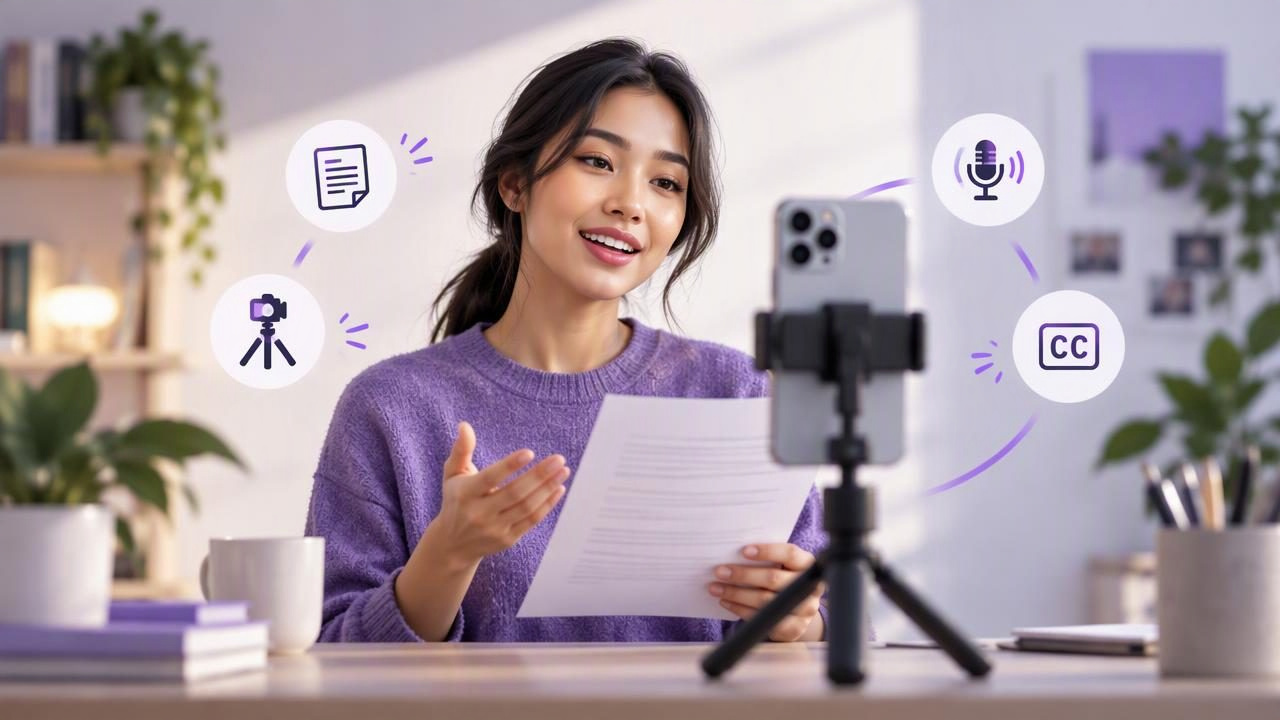
Recording yourself while reading a script can feel like a choice between sounding prepared and looking at the camera. An iPhone teleprompter helps bring those tasks together: your lines scroll near the lens while the camera records. With a little setup, you can record video while reading a script on iPhone and keep your delivery conversational rather than locked to the page.
The key is not to make the script longer or the scrolling faster. It is to create a simple setup where the words are easy to follow, your eyes stay close to the lens, and your voice is clear. This guide walks through a practical example—from preparing a short script to checking the recording—and explains where app and device limitations matter.
Start with a script built for speaking
A script written for reading silently may be difficult to deliver out loud. Long sentences, dense paragraphs and formal transitions can make you sound stiff, even when the words are correct. Before opening a teleprompter, read the script aloud once and revise the spots where you stumble or run out of breath.
- Keep one main idea in each sentence. Split a sentence if it contains several points.
- Use line breaks as speaking cues. Separate ideas into short sections rather than creating one large block of text.
- Write transitions you would actually say. Phrases such as “Here’s the practical part” can sound more natural than a formal heading.
- Mark emphasis sparingly. A few cues such as “pause” or “key point” can help, but too many can distract you while reading.
For example, a 30-second introduction might begin: “If your houseplants keep losing leaves, don’t change everything at once. Start by checking the light. Then check how often the soil dries out.” The short sentences leave room to breathe and make each instruction easier to deliver clearly.
Read the final version aloud at a comfortable pace and time it. If you need to shorten the recording, cut a sentence or an example before you try to rush through the words. A teleprompter can help you follow a script, but it cannot make an overpacked script sound relaxed.
Set the iPhone and teleprompter before you record
Mount the iPhone securely at roughly eye level. If the lens sits noticeably above or below your eyeline, you may appear to be looking up or down throughout the video. Place the script close to the camera lens so that following the text requires only a small eye movement. This matters especially for close-up videos, where side-to-side glances are easier to notice.
Choose the framing and orientation before loading the final take. A vertical frame is often suitable for short-form social video, while a horizontal frame may suit a presentation or a longer YouTube-style video. The intended platform is a useful guide, but check the finished composition: leave comfortable space around your face and avoid placing important visual details where a platform may crop them.
Make the text large enough to read without squinting, but not so large that only a few words fit on screen. A narrow column and short lines can reduce the distance your eyes travel. If your teleprompter app has different scroll modes, choose the one that fits your delivery. Fixed-speed scrolling moves at a set rate; timed scrolling is based on a chosen duration; voice-following tracking adjusts the text movement in response to speech. The exact controls and behavior depend on the app.
For a first take, use a short passage to find a comfortable reading speed. If the text gets ahead of you, slow the scroll or simplify the passage. If you finish each line early and wait for the next one, increase the pace slightly. The goal is to read at your normal speaking rhythm, not to keep up with a moving screen at any cost.
Run a short audio and pacing test
Before recording the full script, make a brief test clip. Say the opening lines at the volume and pace you intend to use, then play the clip back. Listen for speech that is too quiet, room echo, background noise, clipped words and breaths that are difficult to hear. Also check that your face is framed as expected and that your eyes remain near the lens.
If the audio needs work, try a quieter room or move closer to the microphone you plan to use. Check that any external microphone is connected and selected as expected, if your recording setup uses one. Microphone support and connection behavior can vary by device, accessory and app, so confirm them with a test rather than assuming the phone is recording from the source you intended.
Keep the test short, but do not skip playback. A meter or connection indicator cannot tell you how the finished voice sounds in the room. If you change the camera position, mic arrangement or script pace after the test, record another quick sample.
Record a short section before attempting a long take
Start with a short section of the script, such as the opening 20 to 30 seconds. This gives you a chance to settle into the lens, check the teleprompter movement and notice whether a sentence feels awkward on camera. If you lose your place, pause, return to the start of the sentence and try again. A clean restart is often easier to edit than a long explanation of what went wrong.
For a longer recording, divide the script into clear sections. A short pause between sections can make it easier to find edit points later. If you prefer to record in one continuous take, leave a beat after a mistake before restarting the sentence; that quiet gap can help you identify the moment during editing.
Try not to monitor your own image constantly while speaking. Looking at your face on the screen can pull your gaze away from the lens. Once framing is set, focus on the text and camera position. Use natural gestures and vary your emphasis as you would in a conversation. A teleprompter is a reading aid, not a reason to deliver every line with the same expression.
Check the recording before editing
Review the clip once for picture and once for sound. For the picture, check focus, framing, exposure and whether your eyes stay near the camera. For the sound, listen for clear speech and unwanted noise. If you recorded at a high resolution or frame rate, check that your chosen camera settings are supported by your iPhone and recording app, and that you have enough storage for the file. A 4K recording can provide detail, but it also creates larger files; it is not automatically the right choice for every project.
Trim the beginning or end if there is unwanted setup time, and remove obvious pauses if they interrupt the message. Keep enough space around cuts that the delivery does not feel abrupt. If you need to resize a video for a particular platform, inspect the result after resizing so that faces, captions and important on-screen details remain visible.
Add captions with a final accuracy check
Subtitles can make spoken content easier to follow, especially when someone watches without sound. Automatic captions are a starting point, not a substitute for review. Check names, technical words, punctuation and sentence breaks. Speech that overlaps with music or background noise may also be harder for a captioning system to interpret accurately.
Caption features and available languages vary by app and device. Some tools process speech on the phone and can work without an internet connection, while others may rely on different requirements. Check whether your selected language and iPhone are supported, and allow time to review the text before publishing. Do not assume that captions will be accurate simply because they were generated automatically.
Common problems and quick fixes
| What you notice | What to try |
|---|---|
| Your eyes keep darting across the screen | Move the text closer to the lens, use shorter lines or adjust the text size. |
| You sound rushed | Slow the scroll, add pauses between ideas or shorten the script. |
| You lose your place | Break the script into sections and make the transitions easier to spot. |
| Your voice sounds distant or echoey | Test a quieter room and review microphone placement and connection. |
| Captions contain mistakes | Review the generated text and correct names, specialist terms and punctuation. |
These adjustments address common causes, but they are not guarantees. The room, phone position, script, speaking style and app settings all affect the result. Change one thing at a time when troubleshooting so you can tell what actually helped.
A simple workflow to repeat
- Rewrite the script for speech and read it aloud.
- Choose the video orientation and mount the iPhone at eye level.
- Place the text close to the lens and set a comfortable scroll pace.
- Record and review a short audio and framing test.
- Record the full script in sections or with clear pauses.
- Review picture and sound, make edits, and check captions before sharing.
Keep the workflow flexible: a voice-following mode may suit a speaker who varies pace, while fixed-speed scrolling can work when the delivery is steady. Neither replaces rehearsal or a sound check. If you want a more detailed walkthrough, CueCam’s guide to recording video while reading a script covers the iPhone teleprompter setup; the app offers recording and editing tools, with features and options subject to device and language support.
The best result usually comes from making the reading task easier, not from trying to perform perfectly. Prepare concise lines, keep the words near the lens, test the sound, and review a sample before committing to a full take. That gives you a practical way to record scripted iPhone video while still speaking to the person watching.
